Send a Message
There are two ways of sending a message: using New message and selecting the contact(s) or finding a contact or group and sending a message to that specific contact.
Contacts You have individual and group contacts. These contacts are managed by one or more users at your organization who have been granted the Manage address book permission. |
To send a message to one or more contacts
Select New message

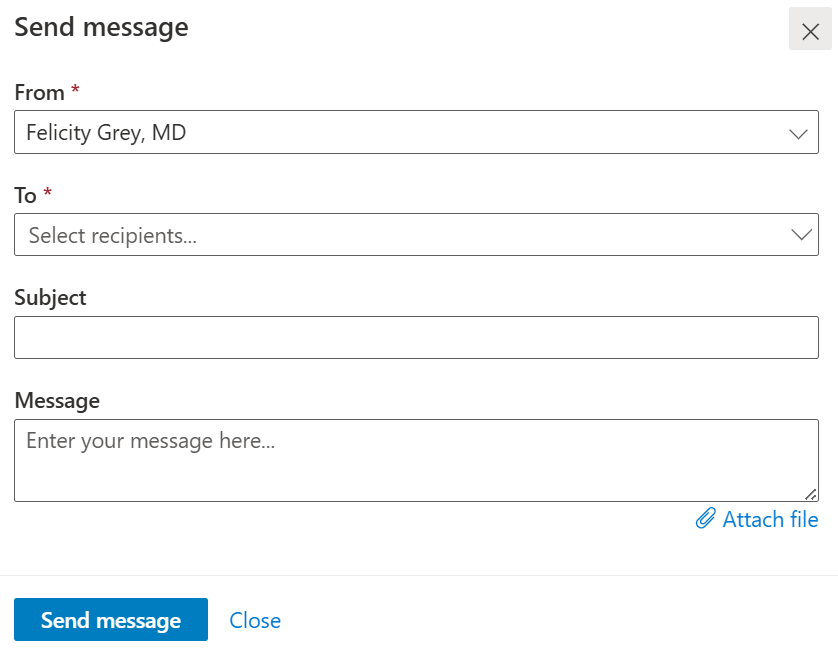
In Send message, select the From contact from whom the message is being sent. Generally, this will be you, but you may be able to manage messages on behalf of someone else. For example, Rita, the medical office assistant, may manage messages on behalf of two surgeons. Each surgeon would be a contact. Rita would select the appropriate surgeon contact.
| You need to be a contact to send a message. If you are unable to select a contact in the From area, add yourself if you have permission to manage the address book. If not, contact your Novari administrator for assistance. |

Select one or more To contacts by selecting them from your list of contacts. You can select one or more individuals and/or one or more groups. You must select at least one individual or one group.
Alternatively, start typing a few letters of an individual or group name. The list of contacts will filter as you type.
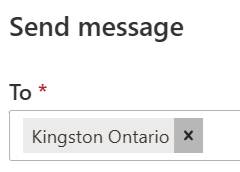
To remove a contact from the To list, select the x beside the contact name.
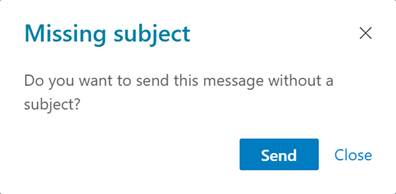
Optionally, enter a subject. If you omit a subject, you will be asked to confirm that choice prior to the message being sent.
To continue without a subject, select Send.
To return to the message without sending to allow you to enter a subject, select Close.
| A message without a subject (if you choose to proceed with submitting the message without one) will show as (No subject) in the message list. |

Enter the message body.
| If you have permission to send attachments, you can send a message without a message body as long as there is at least one attachment. |

Optionally, if you have permission to do so, you may attach one or more a PDF files to the message. You can attach a maximum of 10 attachments. An attachment has a maximum file size of 10 MB.
Select Send message to send the message or select Close to discard the message.
Attachments Your Novari ATC site administrator may have granted you permission to add attachments when sending a new message or replying to a message. If you have that permission, you can attach a maximum of 10 attachments to a message. An attachment can have a maximum file size of 10 MB. |
To send a message by first selecting the contact
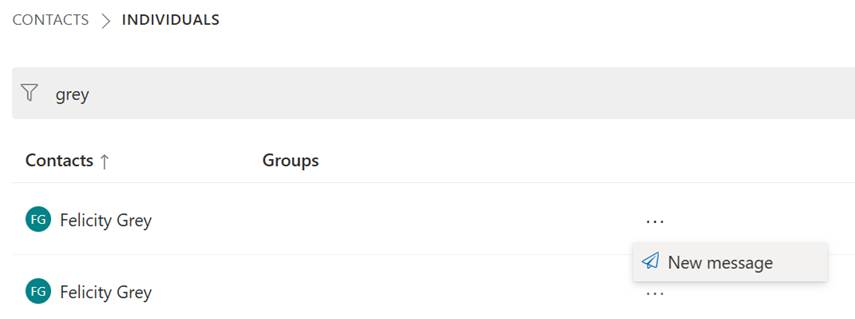
Navigate to Individuals or Groups under Contacts
Find the group or contact you want to send a message to
For that contact, select New message from the More options menu
Read a Message
To read a message, select the message subject. The message opens in the message panel.
Select Close to close the message panel.
Reply to a Message
To reply to a message, open the message by selecting the message subject to open it in the message panel, and then select Reply.
You can only reply to the group or contact who sent you the message. In other words, you cannot add or remove a recipient when replying.
Enter your message.
Optionally, if you have permission to do so, you may attach one or more a PDF files to the message. You can attach a maximum of 10 attachments. An attachment has a maximum file size of 10 MB.
Select Send.
If you do not want to reply to the message, select Discard. Your response is discarded, and the message panel remains open.
There is no Reply All. When you reply to a message with multiple contacts, you reply to all. You cannot add or remove contacts when replying. |
Delete a Message
To delete a message, select one or more messages in your Inbox or Sent items by selecting the check box at the left side of the row

Select Delete from the More Options menu.
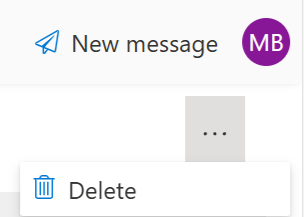
The message is removed from the Inbox and appears under Deleted items.
| A message thread that you delete is not actually deleted, just 'stashed away' so you no longer see it. Other participants to the message thread will still see it. Once another participant posts a new message on that thread, it will be automatically 'undeleted' and the new message will show again in your Inbox. |

Was this article helpful?
That’s Great!
Thank you for your feedback
Sorry! We couldn't be helpful
Thank you for your feedback
Feedback sent
We appreciate your effort and will try to fix the article