Rad View helps streamline actions when radiologists are protocolling in the system.
Once Rad View has been turned on for your Novari MIRM installation, it can be used by selecting the Rad View button next to the Quick Process button on the dashboard.

Once in Rad View the user will have similar experience to quick process where they see how many requisitions are left remaining to protocol.
Rad View can be toggled to be in either Portrait or Landscape mode, this can be done by selecting the Toggle Layout button.
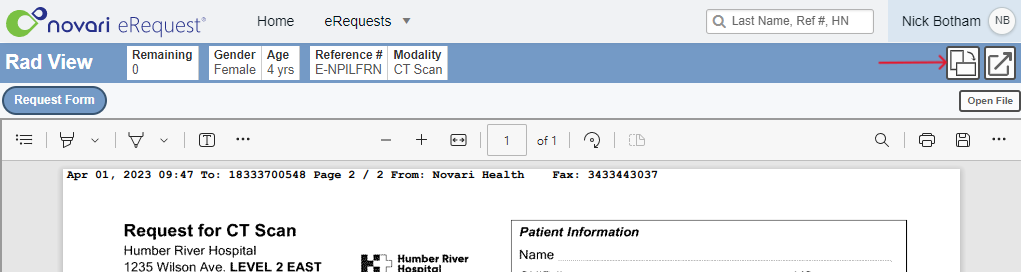
Rad View hides all fields that aren’t within the protocol accordion, so they only see the fields they need to see at time of protocoling. If a user needs to see more fields from the requisition, use the Open in New Tab button to open that specific requisition in the regular requisition manage page.
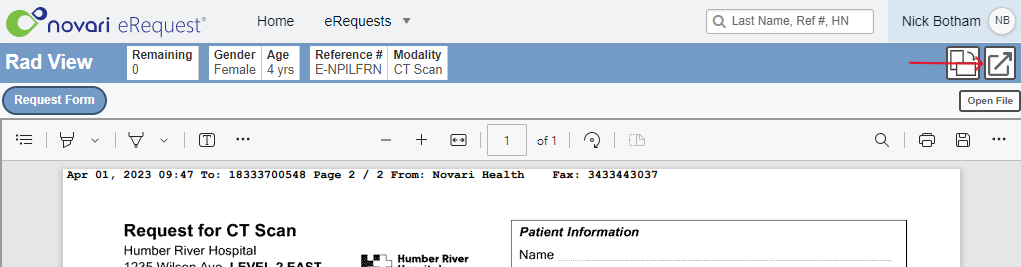
The Rad View header contains only the essential fields to simplify the work area.
Rad View in portrait mode
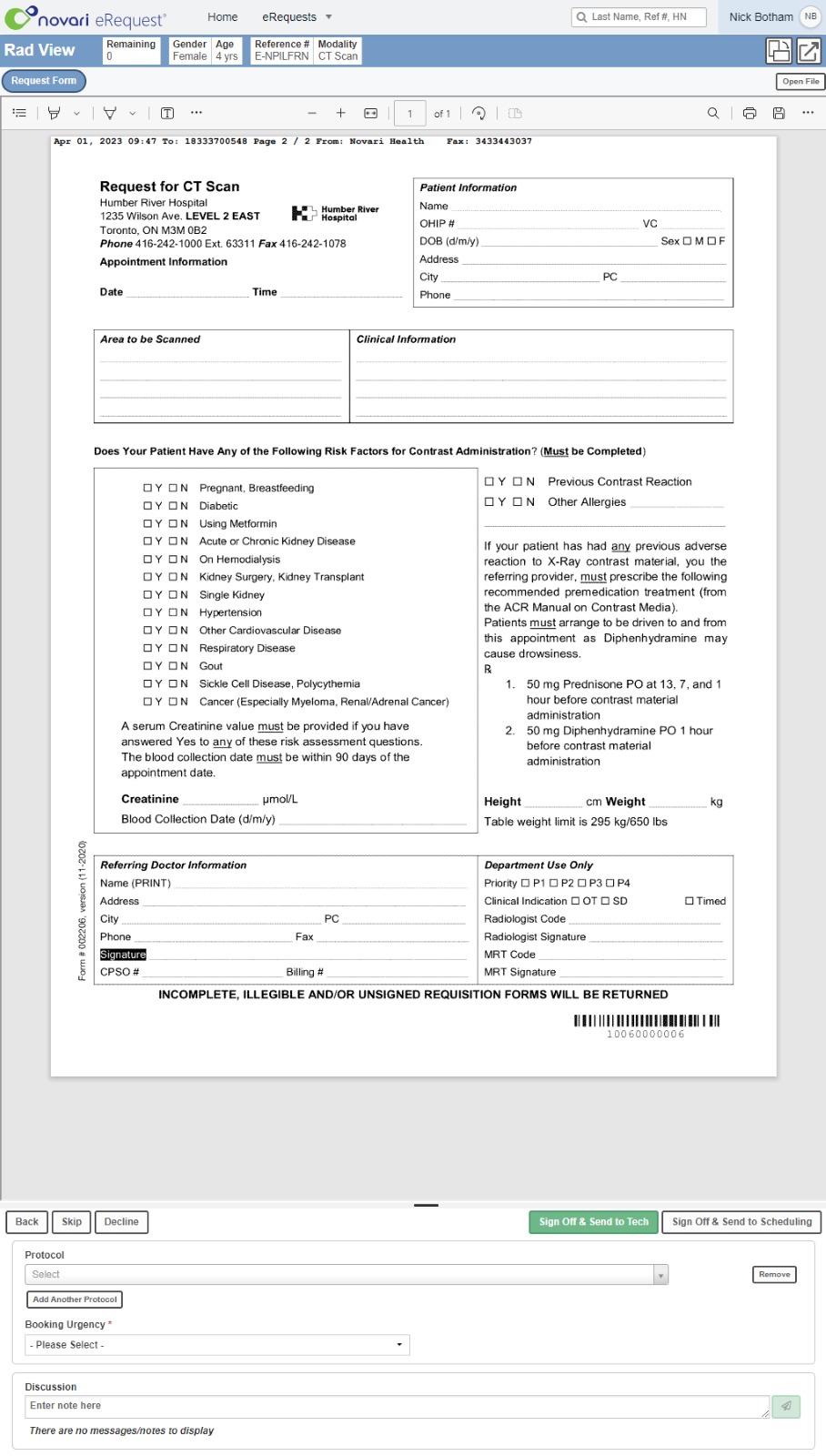
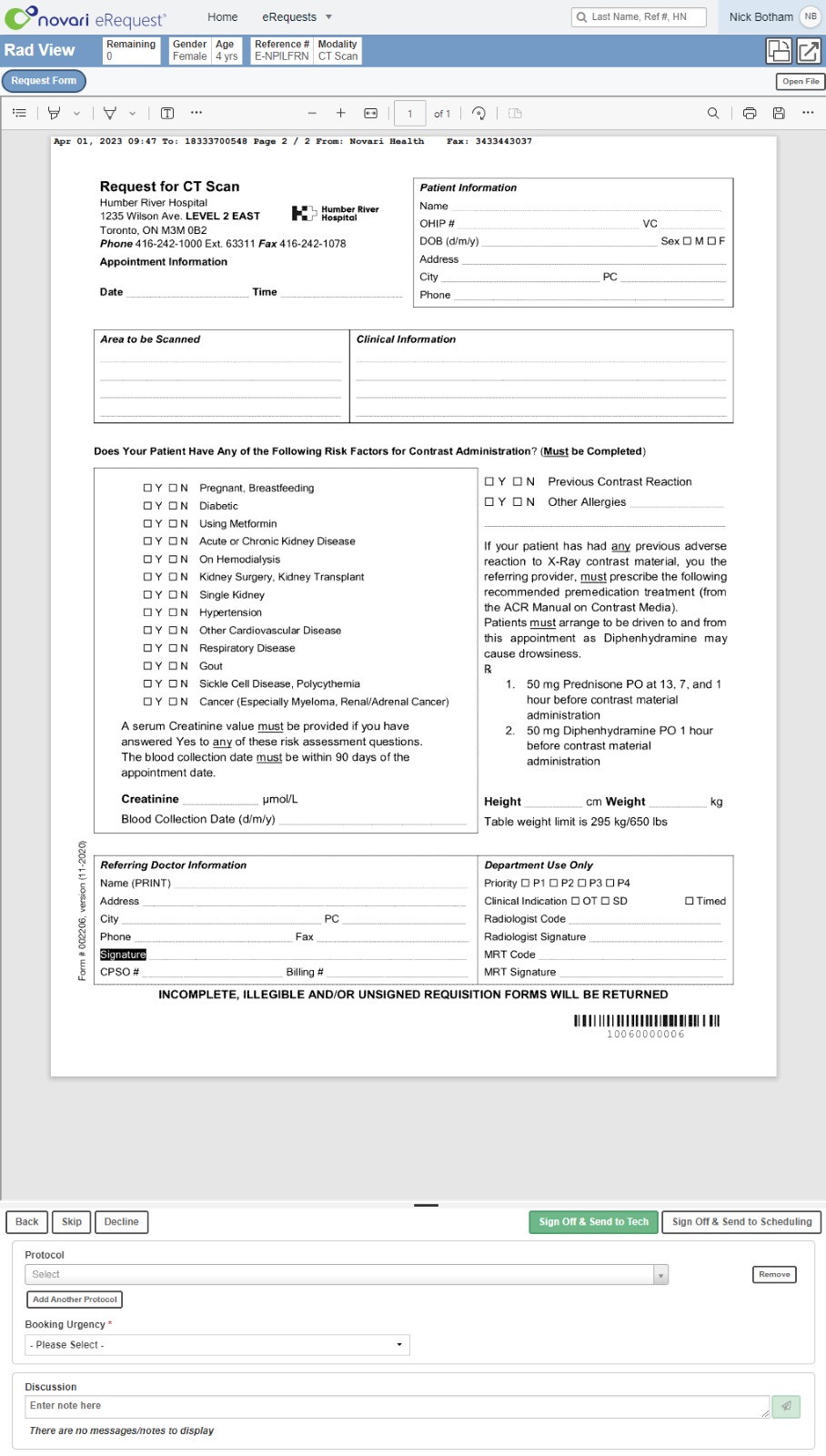
Rad View in landscape mode
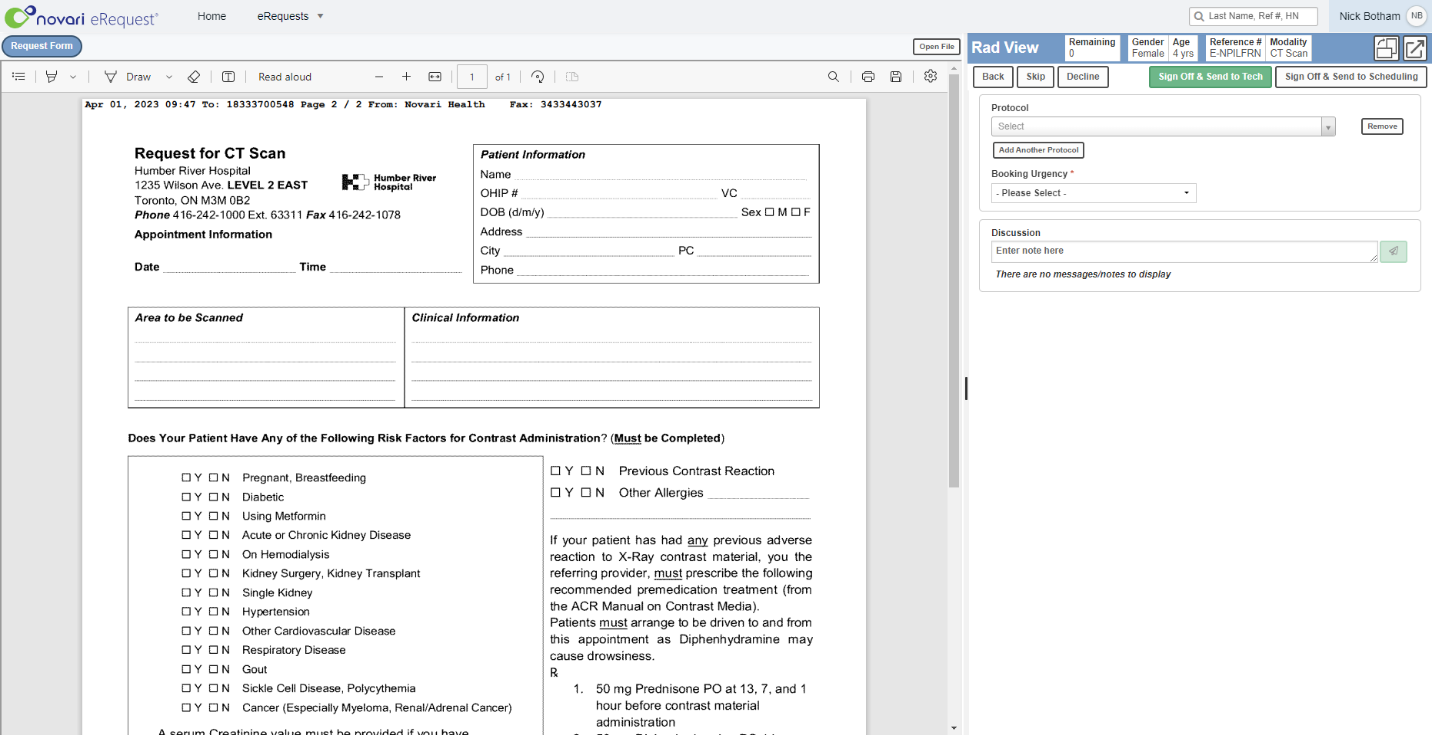
The amount of space used to display the attachment on both layouts is adjustable to accommodate different screen sizes; this can be adjusted by dragging the section of the screen between the PDF and the fields.
For other users who need to communicate with the radiologists it is recommended you use the discussion section. This section is displayed to users when they are in Rad View.
Declining requisitions
In order to Decline requisitions, you select the Decline button. This will bring up the fields that would typically be displayed in the Request for Information accordion. From here the process is the same as before when it comes to selecting which information is missing.
Was this article helpful?
That’s Great!
Thank you for your feedback
Sorry! We couldn't be helpful
Thank you for your feedback
Feedback sent
We appreciate your effort and will try to fix the article