Manipulating Incoming Faxes
You can manipulate incoming faxes.
Select the “Open” action in your Inbox list.
You will see several options as shown in the image below. (Note: for referrals that are an electronic request such as Ocean or an order from a Health Information System, these options will be limited)
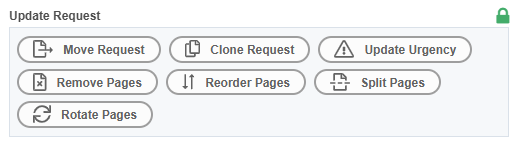
Move Request – Move to another inbox queue. Use this if a referral ends up in the wrong inbox to avoid requiring the sender to resubmit the fax.
Clone Request – Cloning creates a duplicate of the referral. Use this when the referral is requesting multiple services, for example,
It’s a referral requesting an MRI and CT which would require two separate referrals to process,
It needs needs two appointments,
It’s a shared referral where a referral needs to be sent to another area
Update Urgency - Assign the referral a urgent priority which is displayed only while the referral is in the inbox. For example, use this action if there is a high volume of incoming referrals and you want to mark some to keep them at the top of the Inbox list.

Remove Pages – Remove pages from a fax, for example, if there is a blank page or information that does not need to be included
Reorder Pages – When pages are out of order
Split Pages – Use this when a fax contains more than one referral (i.e. one fax with two different patients referrals) See Splitting a Requisition for more information
Rotate Pages - If the referral comes in upside down you can rotate the document
Rejecting a Fax
From the Inbox click “Process” action
Click Reject/Dismiss from the Request Details page

Select the “Reason for Rejection” from the drop down field (Note: all reasons EXCEPT for Junk Request will allow the user to send a fax back)
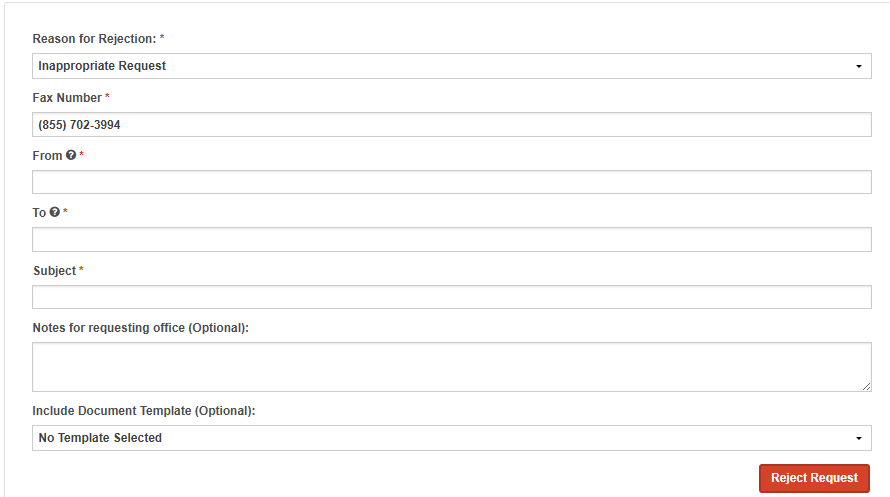
A fax number may automatically appear in the Fax Number. You MUST review the number that appears to ensure it is correct as the fax number displayed is not populated from the Administrator Module and is taken from the “Received From” column in the inbox.
Complete the remaining mandatory fields “From”, “To” and “Subject” and add any notes in the notes for requesting office textbox if needed.
If you have any fax templates uploaded to your account, you can also select the template to send along with the rejection fax
When ready, select Reject Request
The fax will send the referral, reason for rejection cover sheet and the fax template, if one was selected, and will no longer appear in the Active Inbox.
Junk Faxes
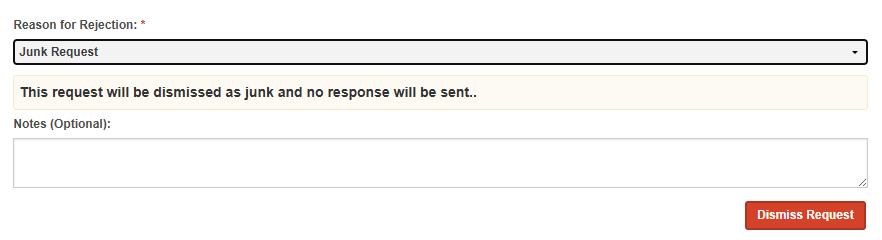
For faxes received that are considered Junk or not required to be sent back, you have the option to remove them from the inbox by selecting the Junk Request as the Reason for Rejection. This will provide an optional notes text box that you can choose to use or leave blank. If you choose to add notes, they will be captured as part of the Status Reason from the Dismissed filtered inbox
Filtering the Inbox
In each Inbox there is a filter option that automatically defaults to Active for all users so that they immediately have access to the new incoming referrals. This filter can be used to locate a referral that may have been accidentally removed from the inbox and should be processed. (Note: referrals are permanently removed from these filtered lists every 6 months)
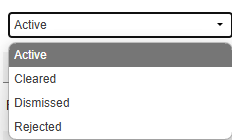
Cleared - Referrals that have been Dismissed as Junk or Attached to Existing eRequest
Dismissed - Referrals that have been Dismissed as Junk, this filter also provides the user id of the individual who dismissed it and the notes if any that were added (this can be seen by hovering the mouse pointer over the question mark beside the Status Reason)
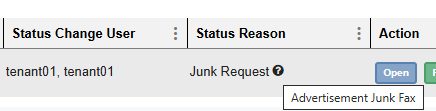
Rejected - Referrals that were faxed back, where the rejection reason was anything except for Junk Request (same as dismissed the user id and status reason with any notes can be viewed)
Receiving Partial Faxes
Partial fax transmissions may be caused by a variety of factors.
Fax line disconnected after multiple retries
The call dropped prematurely
Timeout; the number dialed rings but the call is never answered
The remote fax machine disconnected unexpectedly after indicating that it was not ready to initiate a fax session.
The remote fax machine responded with a disconnect message after a page was sent successfully. Depending on the remote machine's behaviour, it may have still printed the sent page and any preceding pages.
The fax service received an invalid error correction message from the remote fax machine.
Here are some suggestion to help reduce fax transmission errors, and to help with troubleshooting both your phone line and your fax equipment:
Phone line
Contact your phone company’s support team and explain that you are experiencing a high failure rate with your fax machine and frequent disconnects while attempting to transmit faxes. Phone line support may assist in performing diagnostic tests or may dispatch a technician to physically inspect the lines near your building, or in the building itself.
Fax equipment
If your phone company's technician is unable to resolve the connection issues, the main cause of error may be the fax equipment itself. It is recommended to contact the equipment manufacturer or supplier support line and explain the increase in fax errors as well as the troubleshooting steps your team has already attempted. The manufacturer or supplier support team may have several suggestions for your specific equipment, such as changing settings on the machines/equipment, restarting the equipment, etc.
Fax Information Checklist
Reasons for issues are typically a device issue (out of paper/ink, turned off, older machine) or connectivity issues (no fax tone, call dropping, line answered/interrupted by human, busy, etc.)
If errors are consistent with a specific line, it may be an isolated issue with the device itself or a connectivity quality issue.
Have you confirmed with the office/organization that the fax number is correct?
If yes, have you confirmed if there is a 1 before the fax line?
Have you confirmed with the office/organization that the fax machine has the capability to send and receive faxes. (Inbound and Outbound) Does the machine have the settings enabled for 1800 numbers?
Have you confirmed with the office/organization that the fax is working?
Is it connected to the internet? Are there potential internet issues preventing the fax transmission from sending across?
Is it connected to the telephone line (hardwired)? Are multiple devices or systems connected to the same line? Does the line use a surge protector or switching device that could be causing interference with the connection transmission?
Have you verified the fax line is working? (this can be done by calling the number). Do you hear an instant, loud and clear fax tone?
If the line is not instant, then settings on the receiving machine may need to be updated. These setting updates are unique to the devices.
Are you able to send directly from your machine to their machine? This may assist in ruling out issues related to an isolated machine.
Are you able to resend the fax? This is sometimes best after waiting a few minutes to rule out busy fax tones.
Advise the office/organization to restart their device.
If the outcome does not appear to be isolated, please provide the following information to Novari Support:
Receiving number
Sending number
Date and time of occurrence (three examples within 24 hours is preferred)
Troubleshooting results
Was this article helpful?
That’s Great!
Thank you for your feedback
Sorry! We couldn't be helpful
Thank you for your feedback
Feedback sent
We appreciate your effort and will try to fix the article