Fax Templates
Fax templates can be used when sending faxes from Novari eRequest (e.g., when rejecting an incoming referral or requesting more information once the requisition has already been created). Fax templates are created using Microsoft Word and then attached to faxes sent from within Novari eRequest. They can include fields that are automatically populated with patient and referral details.
Note
Fax templates are not shared between users.
Managing a fax template
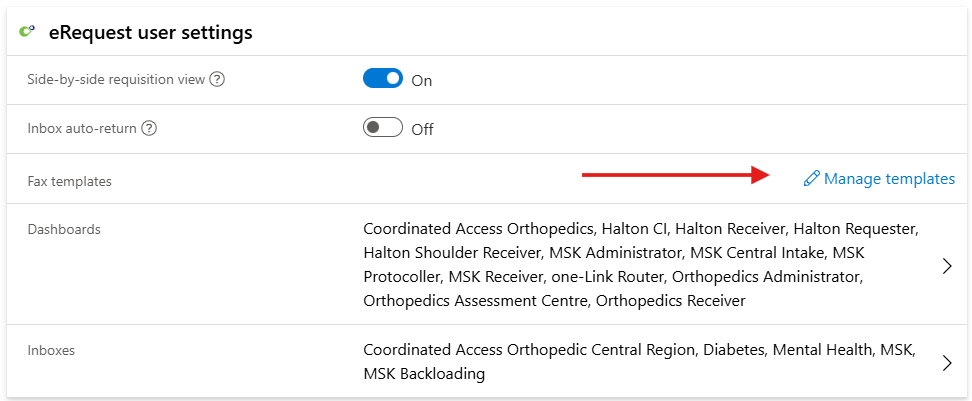
Select User Profile from your user menu.

On the User Profile page, select eRequest user settings

Select Manage templates
Uploading a Template
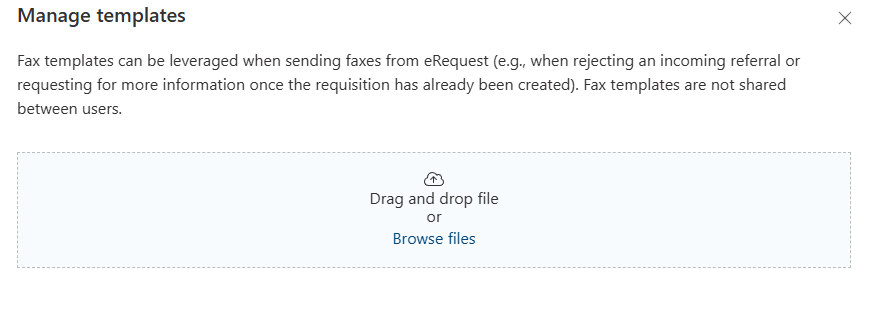
You can upload a fax template in Manage Templates in one of two ways:
you can drag and drop your Microsoft Word document template on the drop zone or
Browse files. Browsing opens the file dialogue box where you can select the document to upload.
Note: Fax templates must be Word file format (i.e. docx)
Once the template has been uploaded, select it to view the template and make any adjustments. When uploading a template it is recommended that you name the template such that it easily describes its purpose and use case. The file name will automatically display what the original file name was. You can edit the name in Edit mode on the Left side of the edit template screen where the mandatory field called Name, then click Update Template to save any changes.

Download, edit or delete fax templates
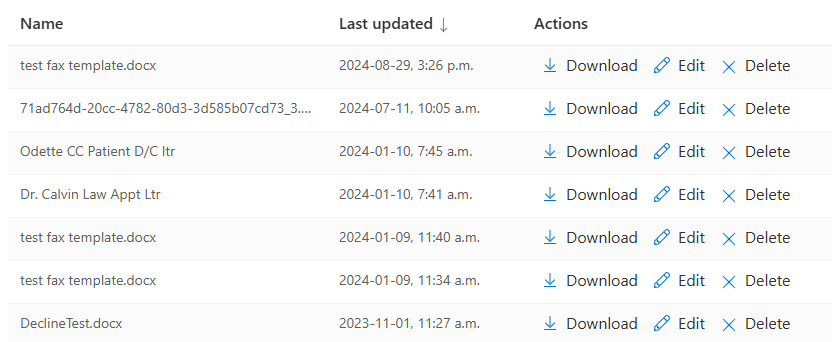
All existing templates that have been added to a user’s profile are listed in Manage Templates. There are three actions:
Download - users can download any template and save it on their computer if needed for sharing or editing
Edit - opens the template in edit mode allowing the user to make any changes
Delete - if the template is no longer required it is recommended to delete it
Pre-populating Fields (Autofill Keys)
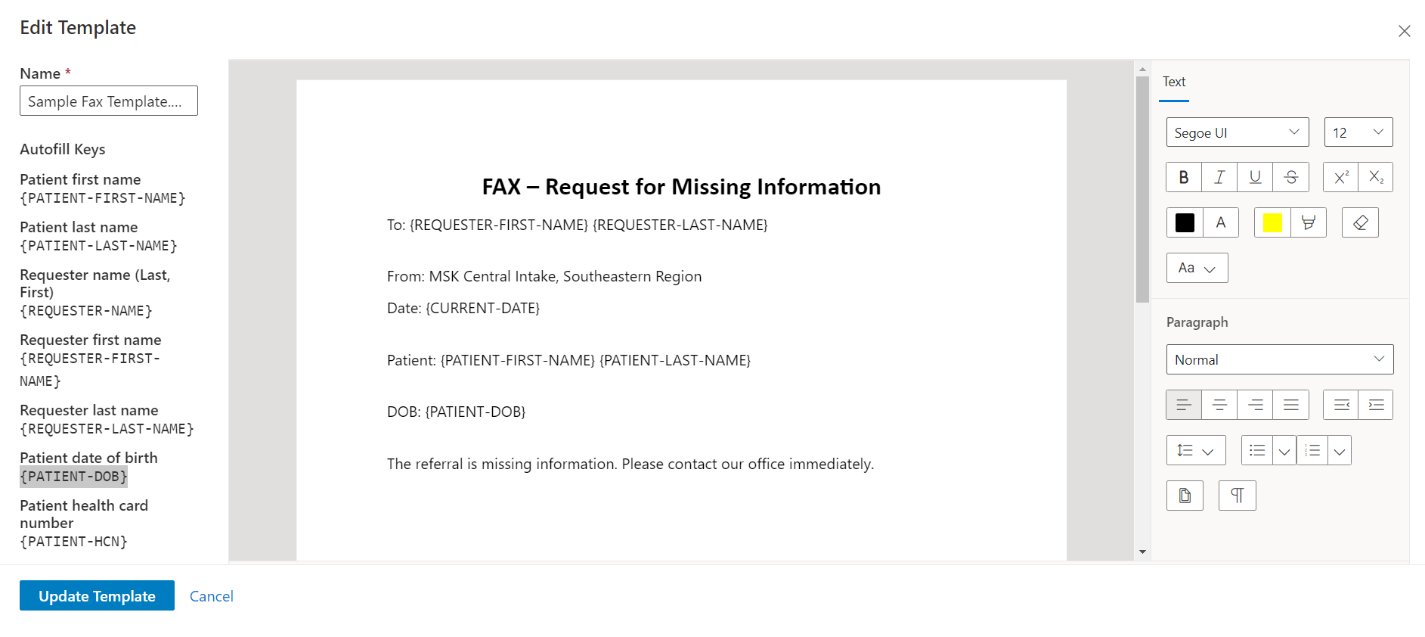
The Autofill Keys, listed along the left side when in edit mode, can be added to the template to display patient and referral data. The data is added when the fax is being sent from a referral.
To embed these keys into your template, select the key code using your mouse and copy and paste it into the fax template where you want the information to appear. Alternatively, you can type the code into the template.
 Fax Template Examples
Template with Autofill Keys added (highlighted). This template, when selected by the user from Send Fax, will have the data auto populated from the referral.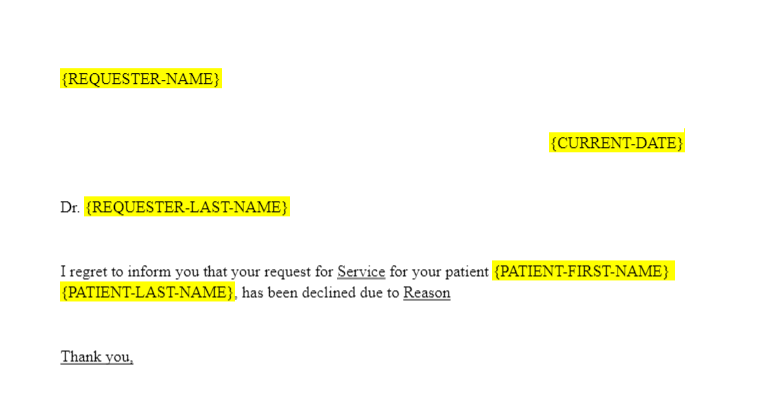
Please be advised this feature will need to be fully tested in your Test environment prior to use in production.
Was this article helpful?
That’s Great!
Thank you for your feedback
Sorry! We couldn't be helpful
Thank you for your feedback
Feedback sent
We appreciate your effort and will try to fix the article