All users can manage their user profile.
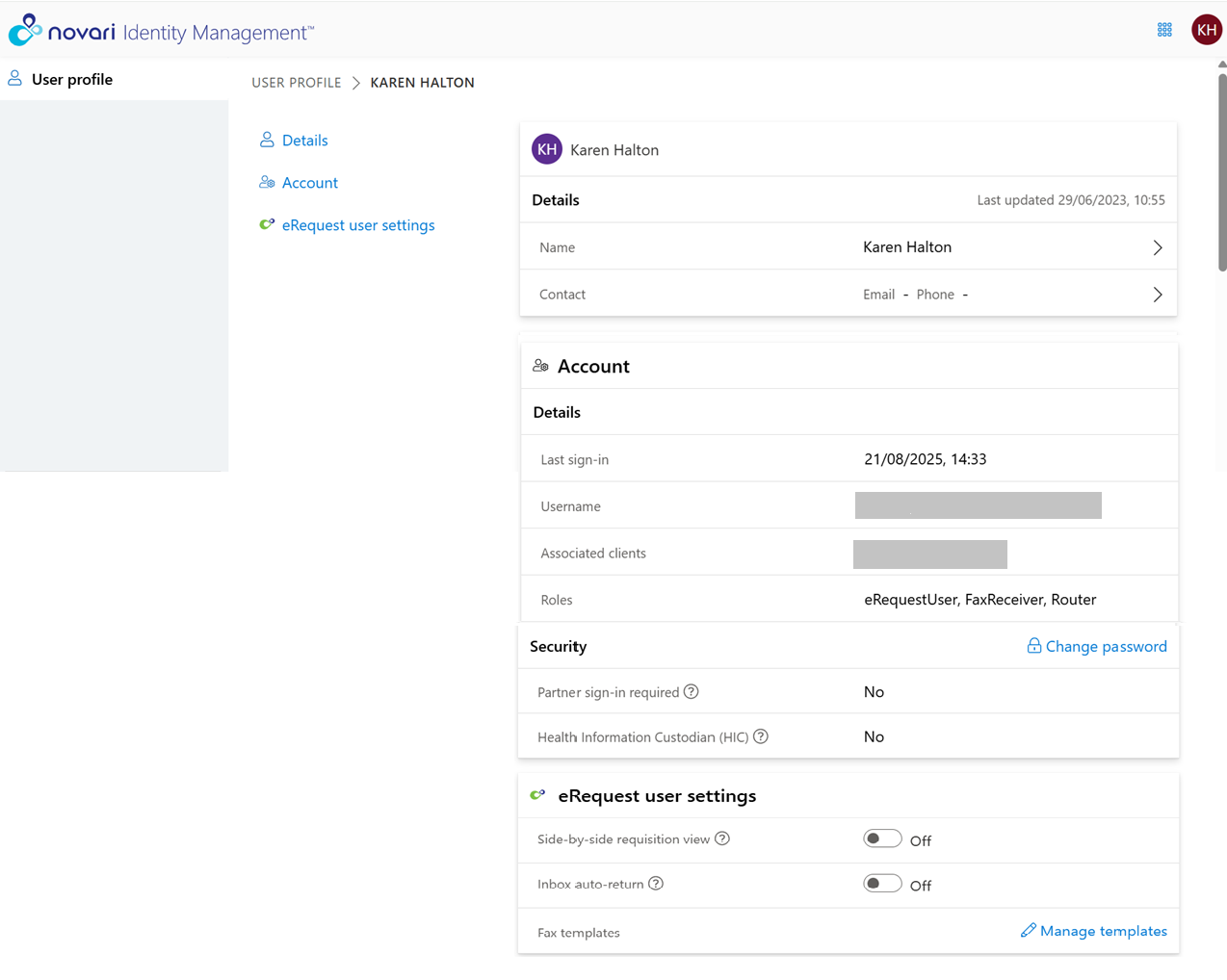
The user profile is divided into sections: Person details and Account. Note: not all users have accounts.
Optionally, you may see eRequest user settings. Users with the role “eRequestUser” can manager their user settings.
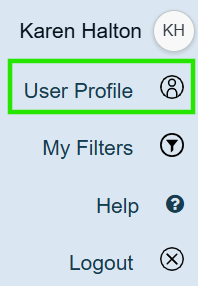
To access your user profile:
Select User Profile from your user menu
There are two ways of navigating around User profile: select an item to jump to the section or use the scrollbar at the right of the browser window.
Person details
In Person details, you can:
Change your first or last name
Both names are mandatory
Update your contact information.
Only your eRequest administrator can see this information
Account
See when you last signed in
See your associated clients, if any
See the eRequest user’s roles that were assigned to you
Change your password
See if partner sign-in was enabled
See if you are a health information custodian
eRequest User Settings
Enable side-by-side viewing
Enable Inbox auto-return
Use the App Launcher to navigate back to Novari eRequest®,
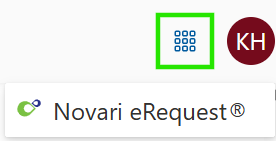
Novari eRequest opens in a new browser tab. Return to Novari Identity Management by selecting its browser tab.
Signing Out
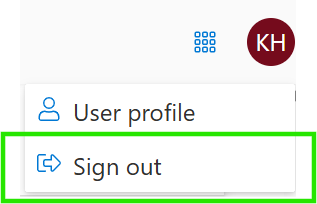
To sign out of Novari Identity Management, select Sign Out from your user menu.
Was this article helpful?
That’s Great!
Thank you for your feedback
Sorry! We couldn't be helpful
Thank you for your feedback
Feedback sent
We appreciate your effort and will try to fix the article