If your Novari ATC site is using Novari Identity Management,™ then you manage your account in Novari Identity Management, separately from the remainder of your user preferences.
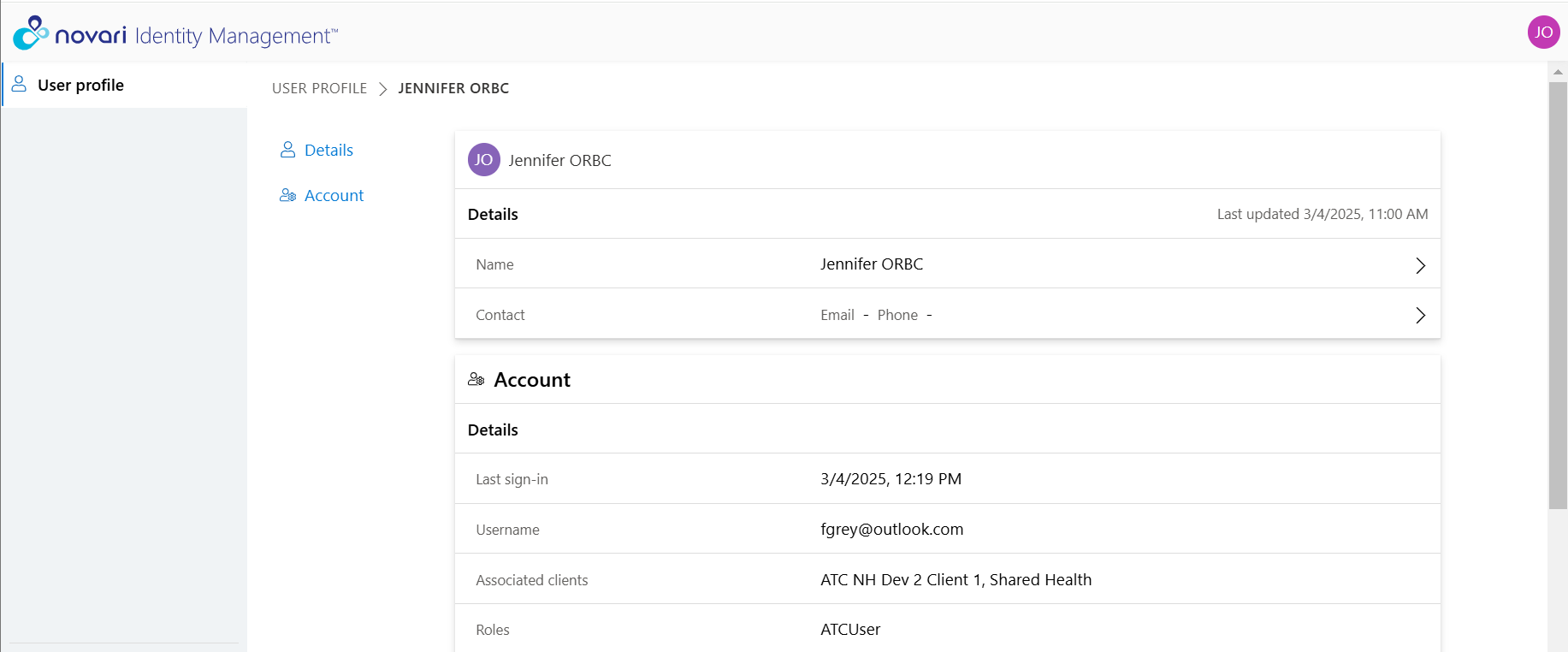
To manage your user profile in Novari Identity Management
Sign in to Novari ATC
Navigate to User Preferences module
Select Manage Account Details
Novari Identity Management opens in a new browser tab


Returning to Novari ATC User Preferences
To return to Novari ATC User Preferences, select the User Preferences tab in your browser
Optionally, you can close Novari Identity tab
Signing Out
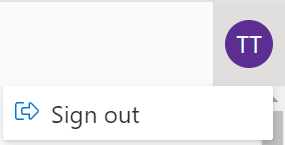
To sign out of Novari Identity Management, select Sign Out from your user menu.
CAUTION: This also signs you out from Novari ATC.
Navigation Pane
The navigation pane displays your user profile.
The navigation pane can be collapsed or expanded by selecting the chevron. Your preference is retained for the next time you sign in.
| When the navigation pane is collapsed, hover your mouse pointer over the icon to see the item’s name. |

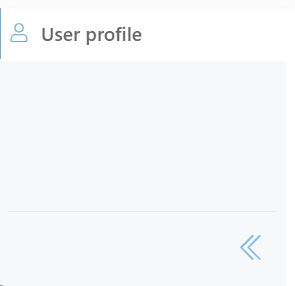
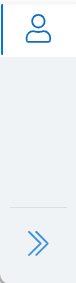
This is the navigation pane for a Novari ATC user
Editing Fields
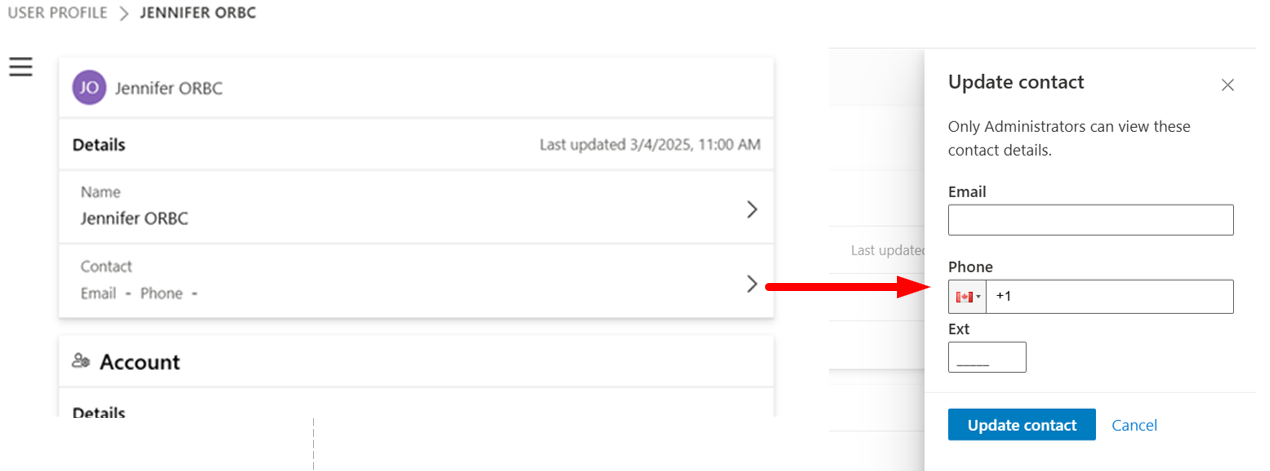
Making edits has changed. For editable areas, such as Contact shown below, selecting the right chevron opens a panel where you make the changes. The panel disappears when you have finished making your edits or have cancelled the action.
Managing Your User Profile
Your user profile is divided into two sections: Details and Account
There are two ways of navigating around User profile: select an item to jump to the section or use the scrollbar at the right of the browser window.
Details
You can change your first name and last name
Both names are mandatory
You can change your contact information.
Email address and phone number
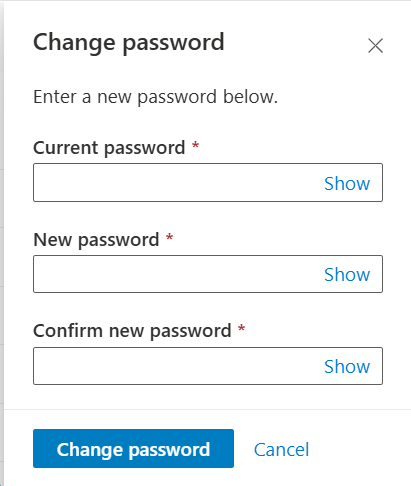
You can change your password
Enter your current password, your new password and then confirm your new password
Select Change password
Was this article helpful?
That’s Great!
Thank you for your feedback
Sorry! We couldn't be helpful
Thank you for your feedback
Feedback sent
We appreciate your effort and will try to fix the article