Send an Outbound Fax
To send a fax from an eReferral:
Open the eReferral
Select the More Actions menu (the button with the ellipsis) and choose Send Fax
In the Send Fax window, review the options shown for fax number to ensure you select the correct one, or if none are correct select the “other” option to manually type in the correct fax number
Complete all mandatory fields (mandatory fields are marked with a *)
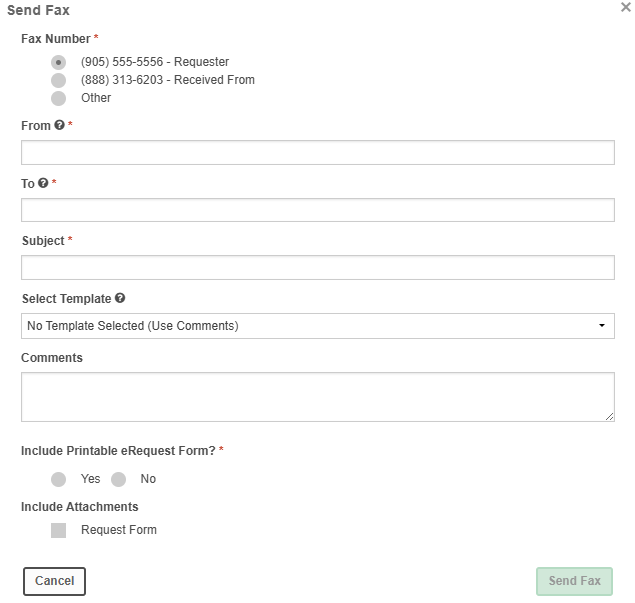
If you have any templates created and saved to your account, you will have the option to select it to include
You can choose to include attachments and the Print version of the eReferral.
Once completed, select Send Fax
A preview of the fax will display with the option to go back and make any edits if needed
Once the fax has been sent users can click the History tab of the referral and see under Communication History the log of the fax.

Any user will have access to see this information. The View action allows the user to see the fax that was sent and resend it or resend it to an alternative fax recipient.
Was this article helpful?
That’s Great!
Thank you for your feedback
Sorry! We couldn't be helpful
Thank you for your feedback
Feedback sent
We appreciate your effort and will try to fix the article