The Discussion Widget
The updated design of the Discussion widget occupies very little space on the requisition. It has also been enhanced with additional functionalities, enabling the user to:
Mark notes as unread, which creates a notification for other users that a note has been added to that requisition.
Enable users to upload documents (only in pdf format) so that they can indicate the addition of an attachment to other users by writing a note.

Notifications
An unread note has several notifiers displayed as below:
List view

Request tab

Discussion Widget Header

Dashboard Bucket

How to add Notes
Any user with permissions to view or edit a requisition can add a discussion note
Open the requisition you wish to leave a note on
Scroll to the Discussion widget (located at the bottom of any requisition)
Type your message in the “Enter note here” field
Click save when done.
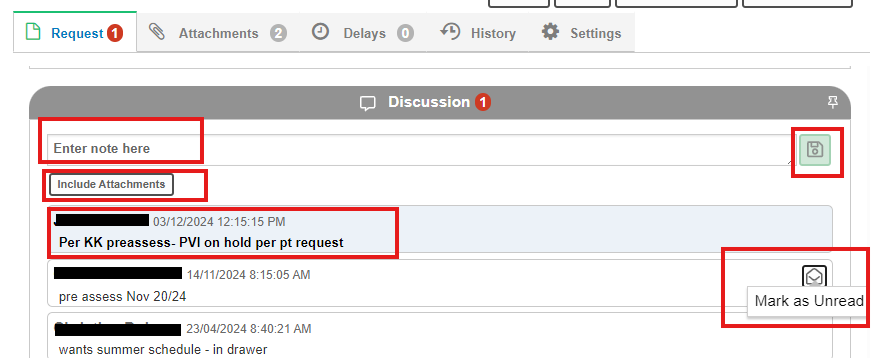
Once saved, the note will appear below the discussion widget notes filed, marked with the user’s username, the date the note was saved and the exact time it was saved and the note that was entered
In order to notify others of a note you have left, after saving click the small envelope that will appear when you move your mouse over the far right of the saved note. This will make the note “unread”, trigger notifications and appear bolded
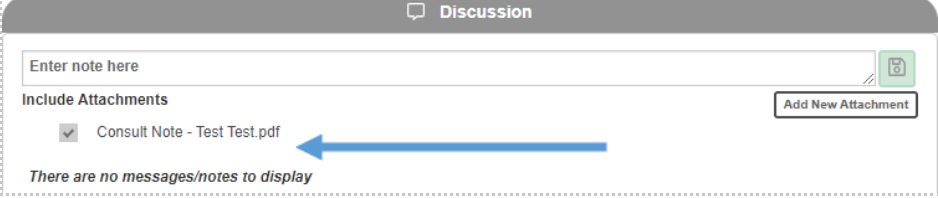
To add Attachments, Click include attachments. then click on add new attachment.
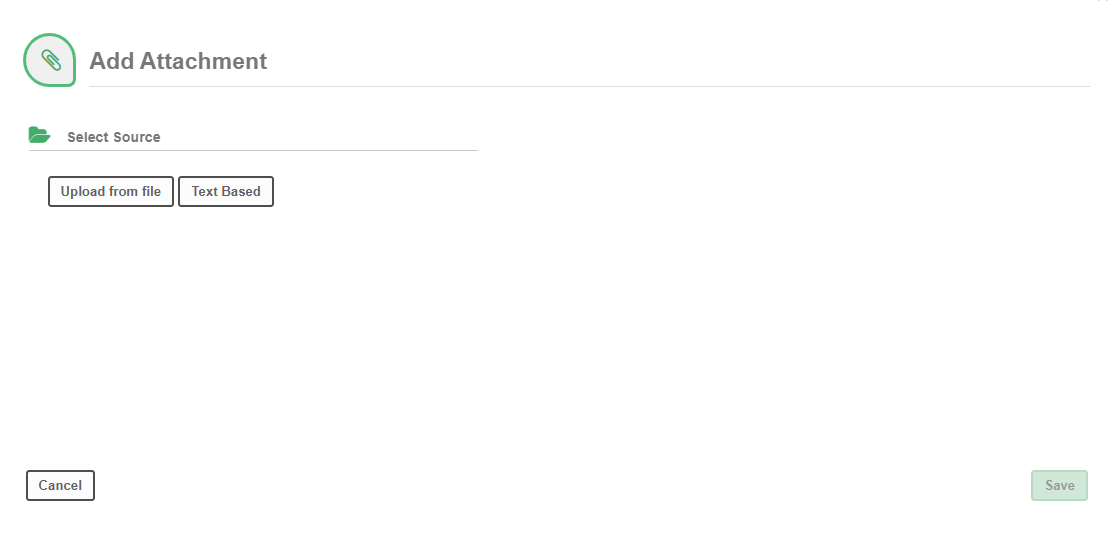
In the add attachment window, upload the file and click save. the attachment appears in the attachments tab of the referral in addition to the discussion widget as follows
The Discussion widget for Ocean Referrals
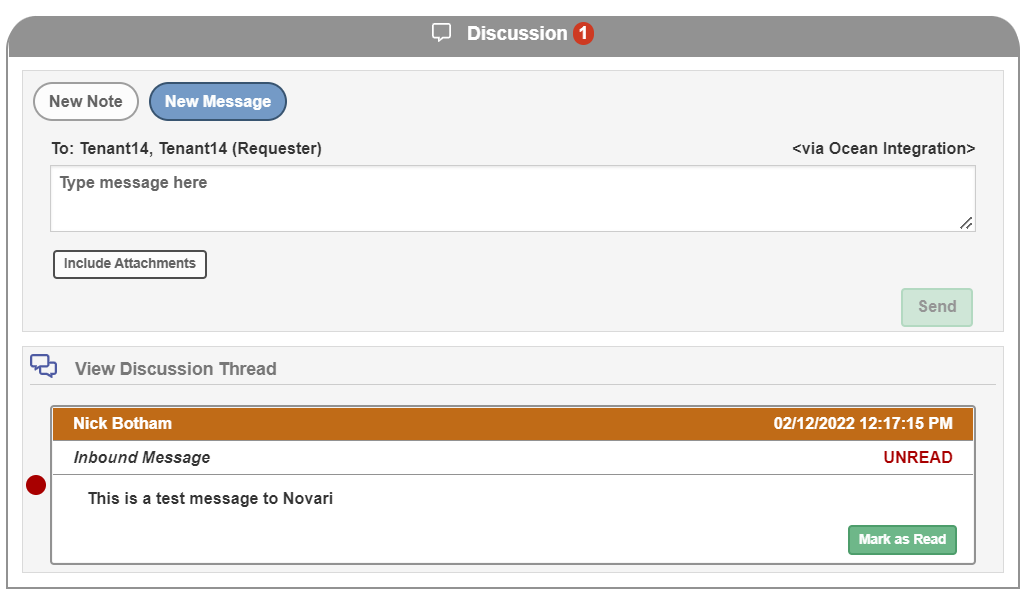
If the referral originated from Ocean the Discussion widget will show two options for messaging.
New Note
This is for internal use only. If you mark it as a note, the details within the note will solely appear in eRequest, and the communication will not be sent to the requester.
New Message
The notification appears both within the system and in Ocean. If you mark it as a message, it will be sent to the requester via integration, and any user in the application who has access to that referral will also receive the outbound Message.

Sending Message from Novari
Messaging between Novari and Ocean becomes available only after the referral has been processed from the inbox. This messaging feature can be utilized to communicate with the referring provider for various purposes, such as asking questions or seeking additional information. The messaging section is located at the bottom of each referral.
Select New Message under discussion. (New note – is for internal notes only)
Attachments associated to the referral under the attachments tab can be sent through messaging.
If attachments are sent from Ocean, the attachment will show under the attachments tab as well as well as the message.
Messages sent from Novari to Ocean will show in the needs review folder in Ocean
Receiving Messages and Attachments from Ocean
Messages/attachments received from the referring provider in the Novari inbox
In Novari, Messages will appear in read mode on records in the inbox. If processed, they will then be copied to the requisition.
Attachments sent in will also show up as additional attachments on the record.

Messages received from the referring provider after the referral has been processed in Novari will show in the following places:
The unread message folder under the notification section of the dashboard.

A red envelope will show on the list view under the status column.

Once a message is read, click mark as read in the discussion pane.
Messages Troubleshooting
If the users notices a message has failed to send, we suggest the following steps:
Please delete the existing note and create a new note.
Creating a new note will trigger the sending process for the message.
If the messages continues to fail, please reach out to your Novari Admin.
Was this article helpful?
That’s Great!
Thank you for your feedback
Sorry! We couldn't be helpful
Thank you for your feedback
Feedback sent
We appreciate your effort and will try to fix the article