Creating and Managing Empty Appointments in the Surgical Block
An Empty Appointment is a reserved time slot that can be filled later with a case. For example, you may want to create an empty appointment for each surgical booking to ensure there is space available for urgent cases.
Create an Empty Appointment
Empty Appointments can be created manually or as part of the removal/cancellation process.
To manually create an Empty Appointment:
Open the Scheduler.
Select Add Empty Appointment.

In Empty Appointment, enter the start time and duration.
Select Submit.
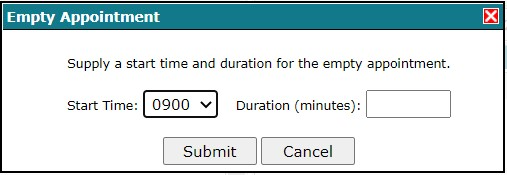 Manually creating an Empty Appointment
The Scheduler displays the Empty Appointment in Requested Bookings.
 An Empty Appointment in the Scheduler
Empty Appointments can also be created as part of the removal process. In this case, an empty appointment is created with the same duration and position in Requested Bookings as the case being removed.
To create an Empty Appointment when removing a case:
Select Yes from Create Empty Appointment?
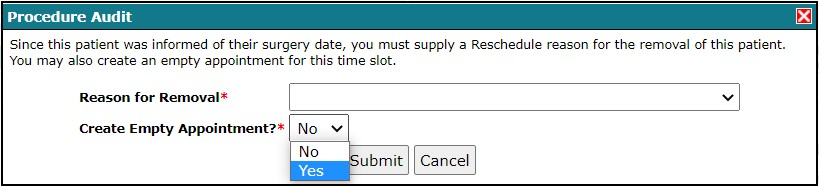 Creating an Empty Appointment as part of the removal process
Empty Appointments can also be created as part of the removal process when using the Mini Scheduler.
When removing a surgery date:
Click Yes to create an Empty Appointment when removing a patient’s surgery date.
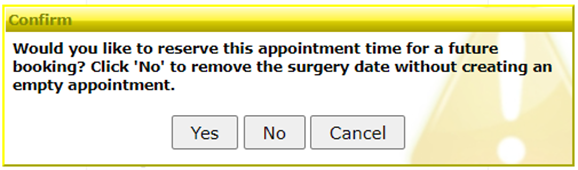
Creating an Empty Appointment, through the Mini Scheduler, when removing the surgery date of a case.
Booking into an Empty Appointment
You are not restricted to the duration of the Empty Appointment when selecting a case to book into that appointment. Therefore, if the case you book into the appointment is of shorter or longer duration and the block has been submitted to Care Venue, then applicable time change messages will be sent to Care Venue for affected cases.
Booking into an Empty Appointment using the Scheduler
To fill an Empty Appointment from the Scheduler:
Double-click on the patient in Unbooked Patients.
A dialog appears asking you to select the Empty Appointment you wish to fill.
Select the appropriate appointment and click Submit. The day will refresh with the patient now booked in the empty appointment.
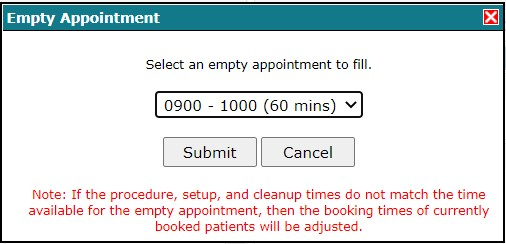 Booking into an Empty Appointment using the Scheduler
Booking into an Empty Appointment using the Mini Scheduler
To book into an Empty Appointment using the Mini Scheduler:
Drill down to the detailed day view from the Mini Calendar.
Select Fill Empty Appointment that corresponds to the time slot you want to fill.
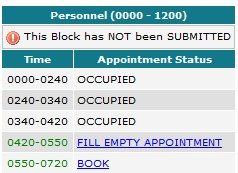 Booking into an Empty Appointment using the Mini Scheduler
Edit an Empty Appointment
To edit an empty appointment:
Go to the Scheduler and locate the Empty Appointment in Requested Bookings.
Click Edit.
In Empty Appointment, modify the start time or duration.
Click Submit.
Remove an Empty Appointment
To remove an empty appointment:
Go to the Scheduler and locate the Empty Appointment in Requested Bookings.
Select Remove.
In Confirm, click OK.
If you remove an Empty Appointment in a block that has been sent to Care Venue, then Care Venue will receive relevant time change notifications for cases that have their times modified because of the removal.
Was this article helpful?
That’s Great!
Thank you for your feedback
Sorry! We couldn't be helpful
Thank you for your feedback
Feedback sent
We appreciate your effort and will try to fix the article