Scheduling Patient Cases - Overview
Novari ATC provides multiple pathways for scheduling patients for surgery. These pathways always lead to one of two possible tools for scheduling: the Scheduler and the Mini Scheduler.
The Scheduler
The Scheduler is the most robust tool for managing your surgical blocks. The Scheduler allows you to book, cancel, and reorder your cases.
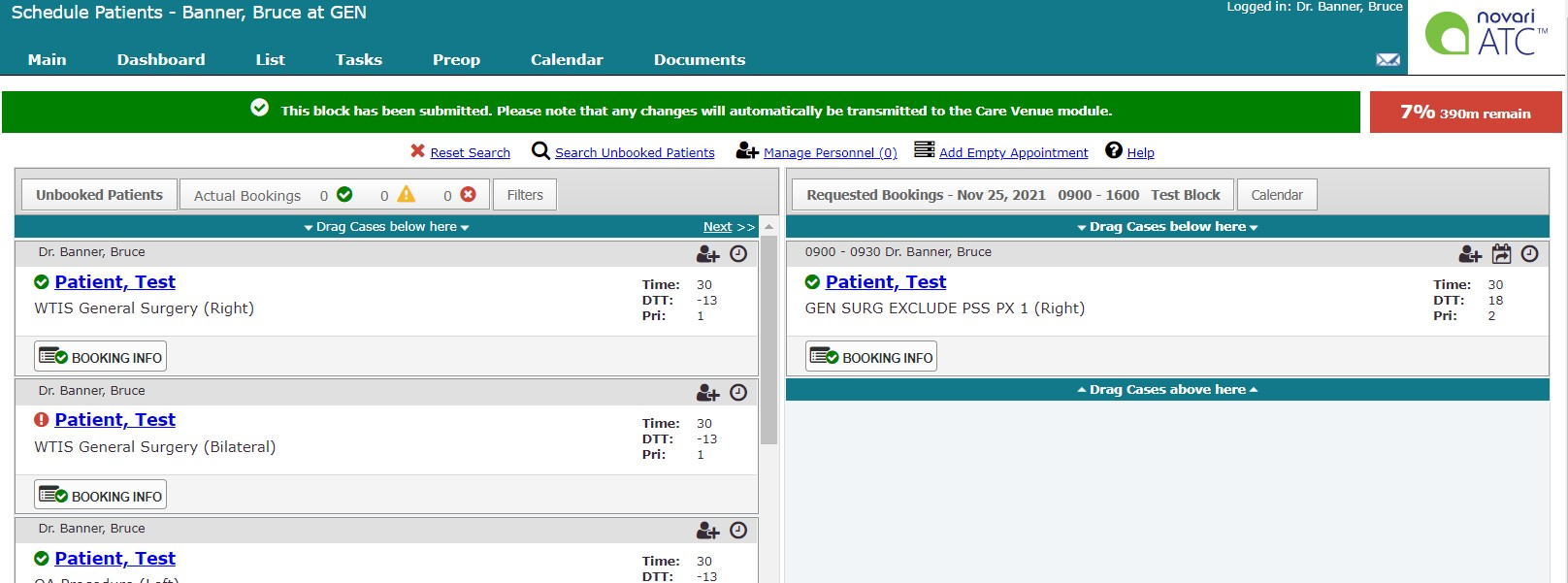
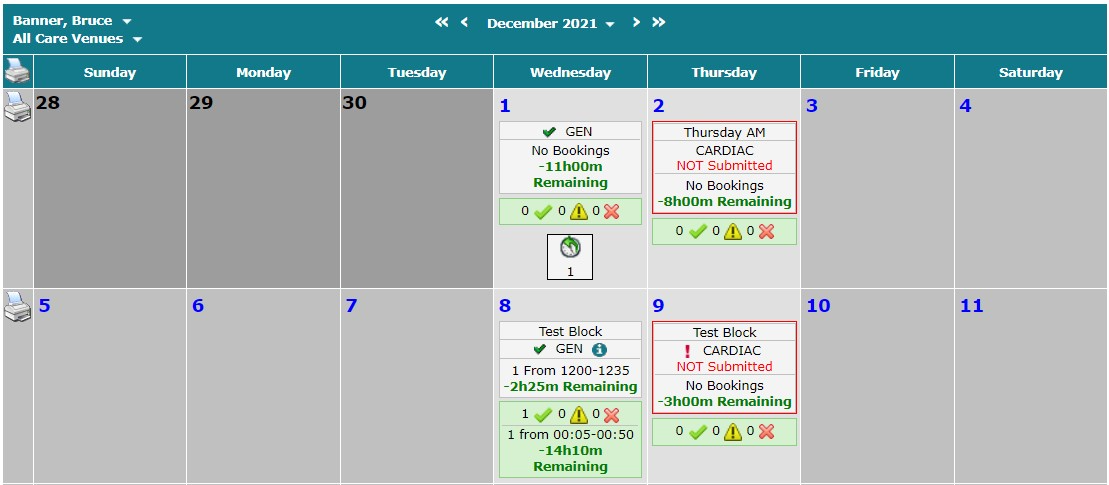
To open the Scheduler, do one of the following:
On the Calendar page click within a block.
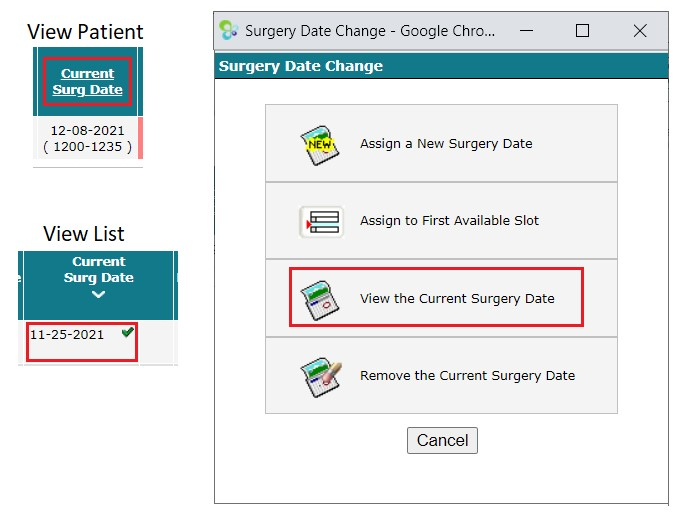
On View Patient page, select Current Surg Date and select View Current Surgery Date in Surgery Date Change.
On View List page, select the current surgical date and select View Current Surgery Date in Surgery Date Change.
The Mini Scheduler
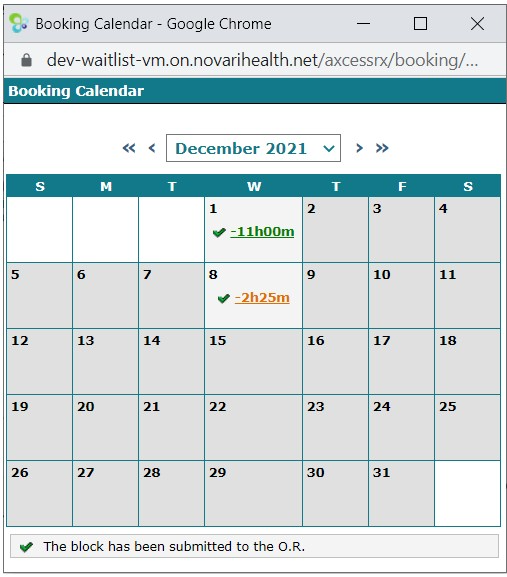
The Mini Scheduler is a simplified version of the Scheduler allowing you to quickly book cases. It is designed to facilitate calendar booking on a case-by-case basis.
We will walk through the functionality of the Scheduler, in both the Compactor and Slate modes, and then give an overview of the Mini Scheduler.
Booking using the Scheduler
There are two modes when using the Scheduler: Compactor or Slate mode. Which you use is a configuration decision made by your site administrator.
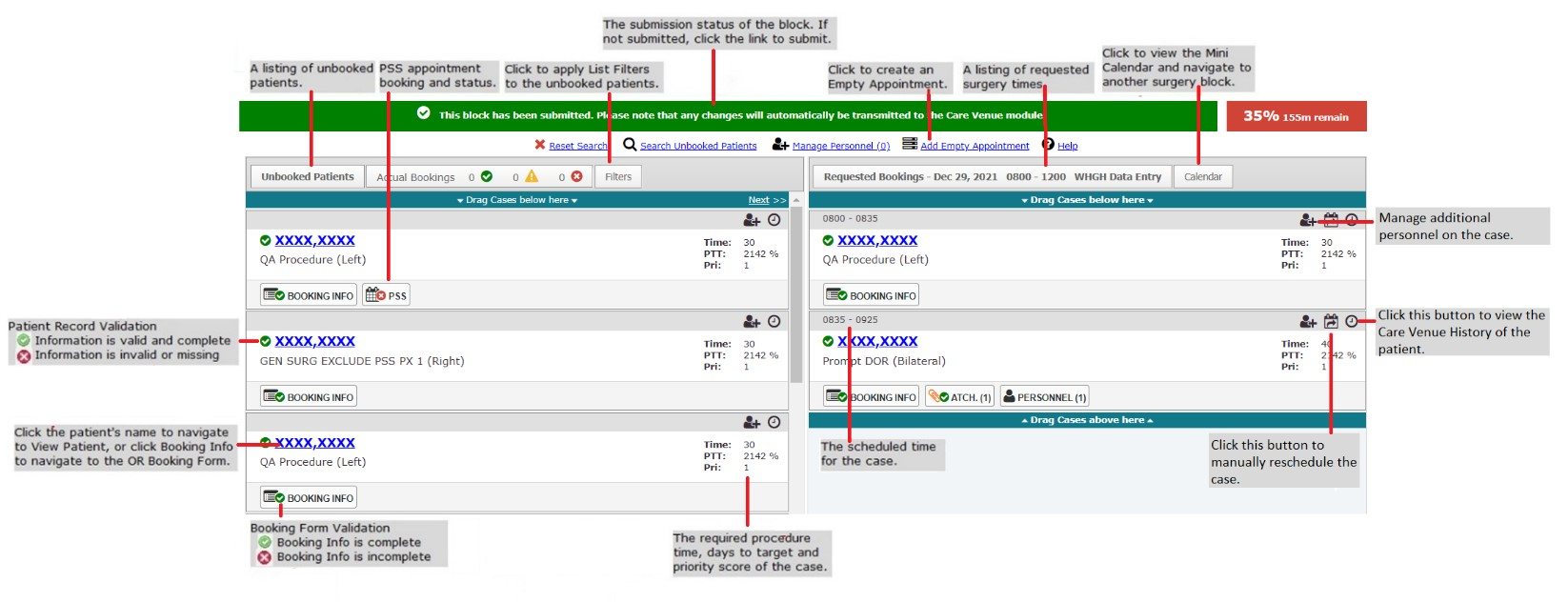
An overview of the core functionality of the Scheduler in Compactor mode
Compactor mode is the primary scheduling format in Novari ATC. The focus here is on block utilization and ease-of-use. Compactor mode can be configured to exclude the setup minutes of the first case and the cleanup minutes of the last case. Cases can be quickly reordered, and empty appointments can be used for reserving time. The case’s start and end times are automatically adjusted as cases are added to, removed from, and repositioned within the surgical block.
Slate mode allows users to schedule cases with gaps between the end time of one case and the start time of the next case. Unlike compactor mode where every case is butted up against the next. Slate allows for time gaps between each case by placing each surgery exactly in the desired start time.
Slate mode is useful when the care venue wants time between surgeries for set up and tear down of the OR without incorporating that time into the cases’ total surgical time. This is generally used for the Gastro service.
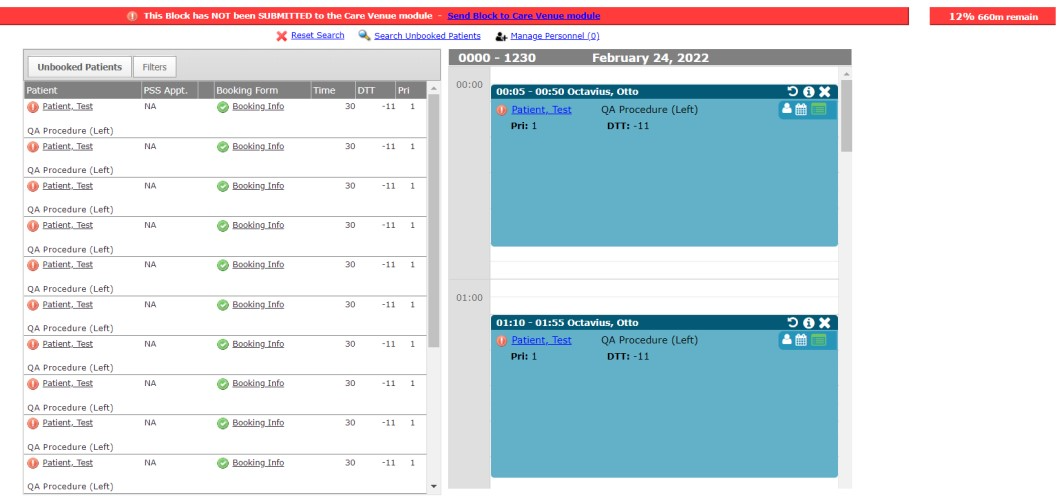
Slate mode
Unbooked Patients
This is your list of patients waiting to be scheduled. The list is presented in order by Days to Target (DTT), or Percentage to Target (PTT) if that preference is set in User Preferences, with the cases over target listed first. In other words, the patients who have been waiting longest within their Priority are at the top of the list.
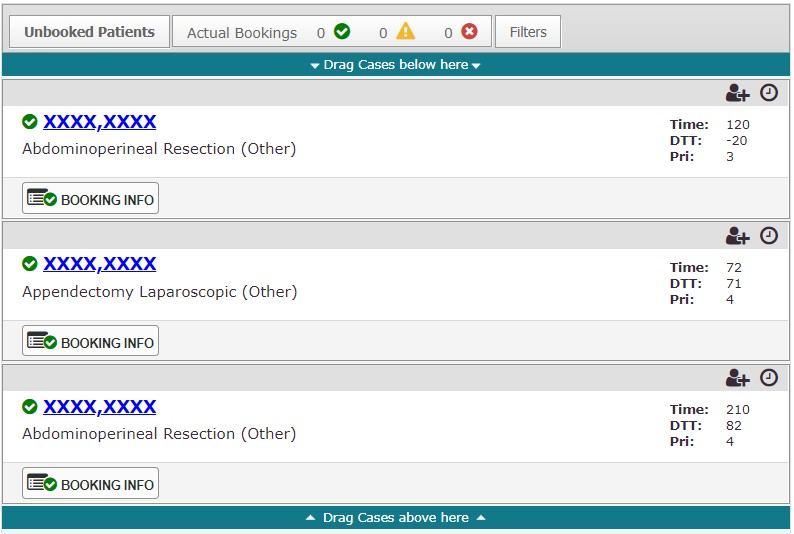
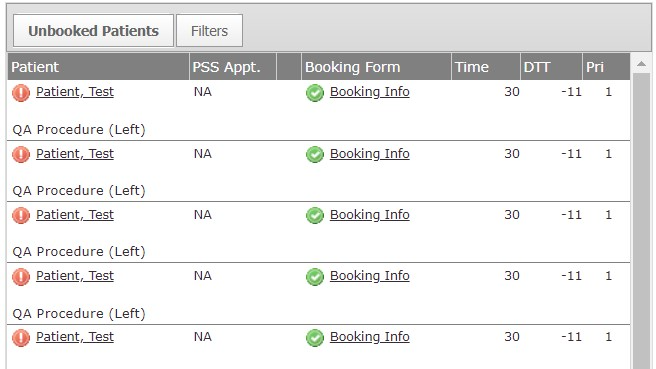
Compactor Mode Unbooked Patients and Slate Mode Unbooked Patients
Requested Bookings
These are the cases you have scheduled for the day in this surgical block in the order in which you want to do them. Always remember, the care venue OR booking office may choose a different order.
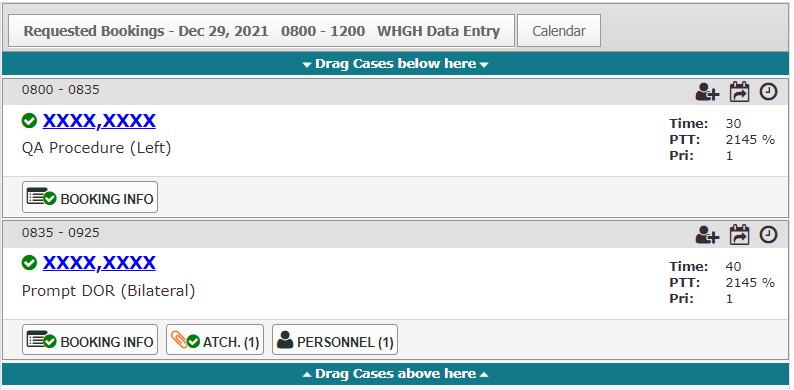
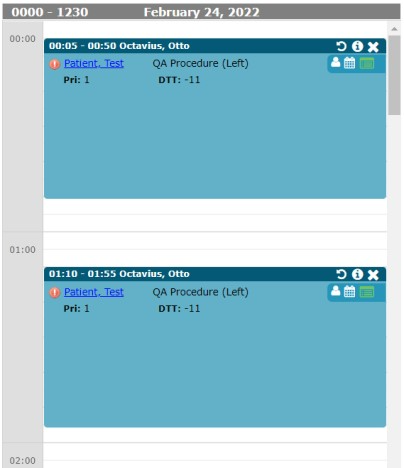
Compactor Mode Requested Bookings and Slate Mode Requested Bookings
|
In Slate Mode, click the information icon |

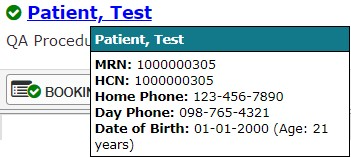 In Compactor Mode, hover the mouse pointer over a patient to see patient information.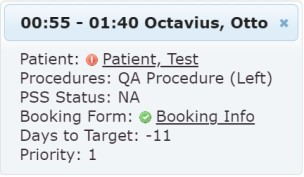
 to see patient information.
| In Compactor Mode, you can see changes to the case by selecting the Care Venue History icon |

 in the case header.
Overbooking
If overbooking is configured by your site administrator, there will be space at the end of your day to allow for your blocks to be scheduled past the regularly scheduled end time.
Submission State of Blocks
There are multiple visual cues to indicate when a block has been submitted to the OR via the Care Venue module.
In the Scheduler, the status bar at the top of the page will indicate whether that surgery block has been sent to the Care Venue module.


This status bar indicates that the block has been successfully submitted to the Care Venue module in Compactor Mode and Slate Mode.


This status bar indicates a block has not yet been submitted. Select ‘Send Block to Care Venue Module’ to submit the block in Compactor Mode and Slate Mode.
In the Calendar, submitted blocks are marked with a checkmark.
Blocks that have not been submitted will be marked with an exclamation mark and NOT Submitted in red text when they are within the warning interval. Each Block in the calendar view has its own submission status indicator.
In the Mini Scheduler, submitted blocks are marked with a checkmark.
Send Cases (Requested Bookings) to the OR via the Care Venue module
The Care Venue module is used by hospital OR booking offices to review your booking requests. Sending cases to the OR booking office is done via the Care Venue module. This allows the OR booking clerks to view the cases you have submitted for surgery. OR booking clerks cannot see any of your patients until you perform this action. Once you have submitted a block, any changes made to patients on that day, for example, new patients, cancellations, case reorders, will be sent automatically.
Using the Care Venue module, the OR booking office can suggest changes to the case order. These changes are immediately available in the Provider’s Office Calendar.
Sending a Block using the Scheduler (Compactor/Slate Modes)
From the Scheduler:
Click the link Send Block to Care Venue Module found in the status bar. You will be notified as to whether the submission was successful.
Sending a Block using the Calendar
From the Calendar:
Click on the Info icon and then click the link “Send to OR”. You will be notified if the submission was successful.
The “Send to OR” link is not enabled for a block that has already been sent.

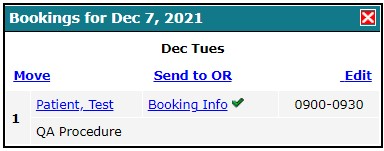
 EVERY REQUESTED BOOKING IN THE BLOCK MUST HAVE VALID PATIENT DATA AND BOOKING
INFO FOR THE BLOCK TO BE SENT TO THE CARE VENUE MODULE. ONCE A BLOCK HAS BEEN SENT TO THE CARE VENUE MODULE, YOU WILL ONLY BE ABLE TO BOOK PATIENTS WITH VALID INFORMATION.
Was this article helpful?
That’s Great!
Thank you for your feedback
Sorry! We couldn't be helpful
Thank you for your feedback
Feedback sent
We appreciate your effort and will try to fix the article