Using the Mini Scheduler
Use the Mini Scheduler to:
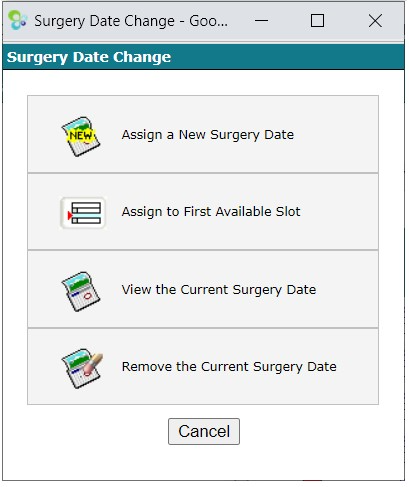
Assign a New Surgery Date.
Assign to First Available Slot.
View the Current Surgery Date (this will load the surgery day in the Scheduler).
Remove the Current Surgery Date.
These options are context sensitive. For example, View the Current Surgery Date and Remove the Current Surgery Date only appear if the patient currently has a surgery date.
To open the Mini Scheduler, do one of the following:
In View List, click the calendar icon in the Current Surg Date column.
In View List, click the surgical date in the Current Surg Date column.
In View Patient, select Current Surg Date.
In the case header in Requested Bookings, click the Reschedule icon.

Booking using the Mini Scheduler
To book a patient case using the Mini Scheduler:
Select Assign a New Surgery Date from the Surgery Date Change dialog to open the Booking Calendar.
Booking Calendar Legend
|
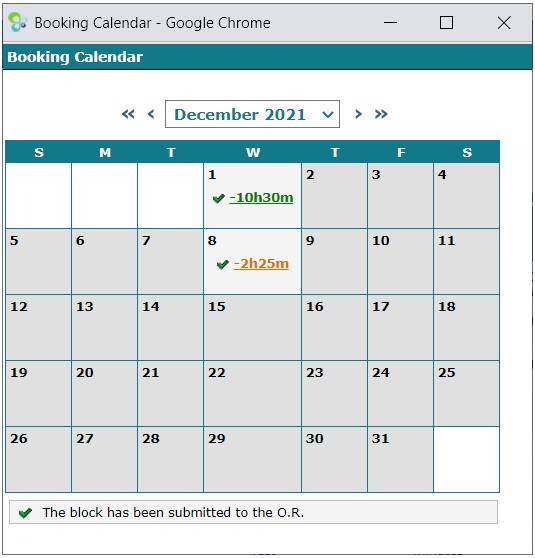
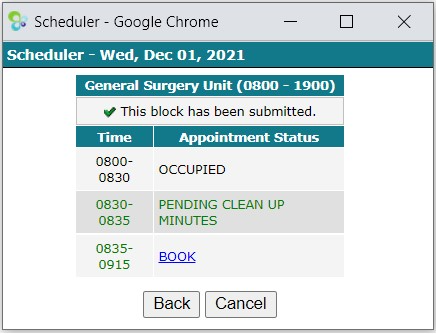
In the Booking Calendar, select a surgery date by clicking on one of the time links on a day. This opens the Mini Scheduler.
In the Mini Scheduler:
Click Book.
Your patient will now be booked in that slot.
Alternatively, you could fill an empty appointment.
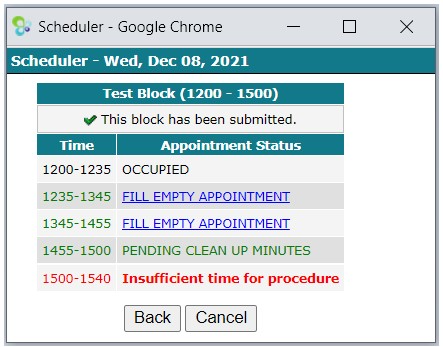
| Hover the mouse pointer over a block to see information about it |

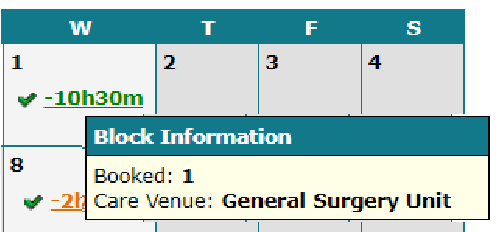
To book the first available slot using the Mini Scheduler:
Select Assign to First Available Slot in Surgery Date Change to open the Scheduler to the first available slot.
The algorithm for determining the first available slot will consider the patient’s care venue, procedure time, and unavailable dates.
Book the slot.
 YOU CANNOT SUBMIT A BLOCK TO THE OR FROM THE MINI SCHEDULER
Removing a patient using the Mini Scheduler
To remove a patient from a surgical date, do one of the following:
In View List, click the surgical date in the Current Surg Date column.
In View Patient, select Current Surg Date.
Then, in Surgical Date Change, select Remove the Current Surgical Date.
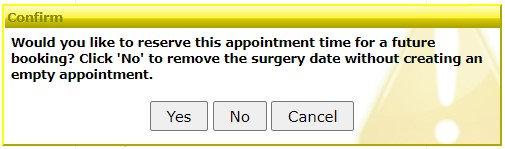
Confirm if you want to reserve this appointment time for a future booking.
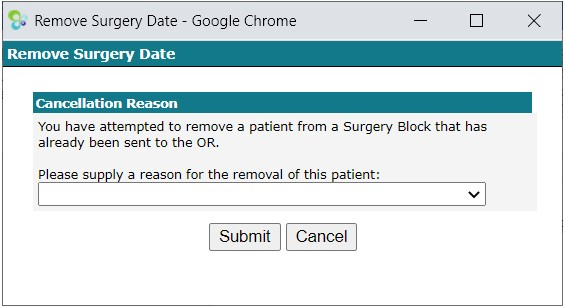
If required, in Remove Surgery Date, select a reason for the removal (cancellation) and click Submit.
Was this article helpful?
That’s Great!
Thank you for your feedback
Sorry! We couldn't be helpful
Thank you for your feedback
Feedback sent
We appreciate your effort and will try to fix the article