Routing tags allow users to filter routing options when using the Central Intake Routing accordion (or another accordion containing the routing component) for referrals in the ‘Awaiting Routing’ state.
Routing tags are applied to Locations and/or to a Person at a Location. Locations can have none, one or multiple routing tags.
Applying routing tags to a person at a location is helpful, for example, if Central Intake needs to track if a person is going on leave for an extended period, or if there's a person at the location with unique language skills.
See Filtering Routes using Tags for how tags are used to filter the list of routes.
Tags can only be applied to Locations with one or more Service Types for example, CT Scan service type. You can see the list of service types for a location by selection Service type in the Location’s Settings. 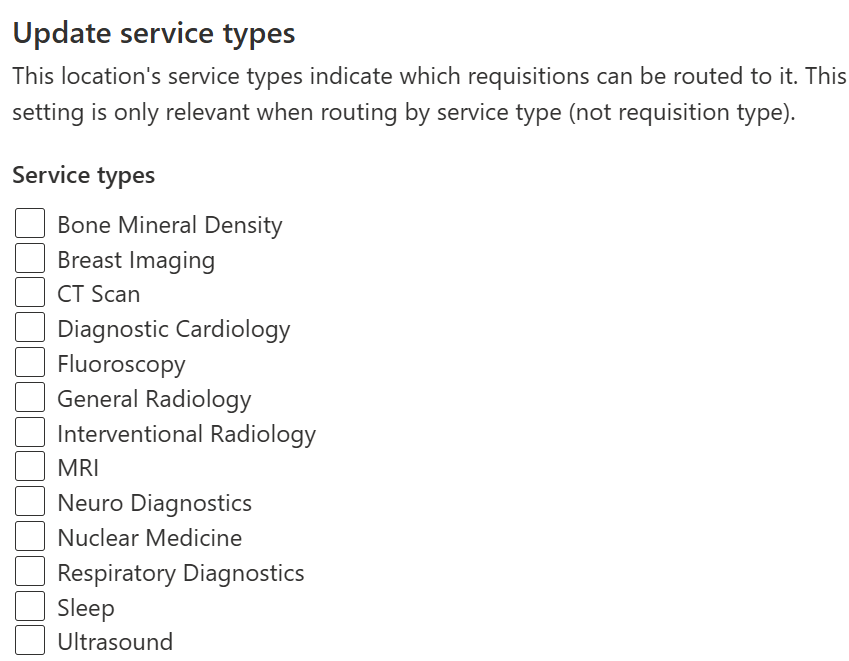
Creating a new routing tag for a Location
Sign in to Novari Identity Management
Select Locations from the navigation area
Under Settings, select Routing tags
Note: If you don’t see Routing tags, select one or more Service types for the Location.
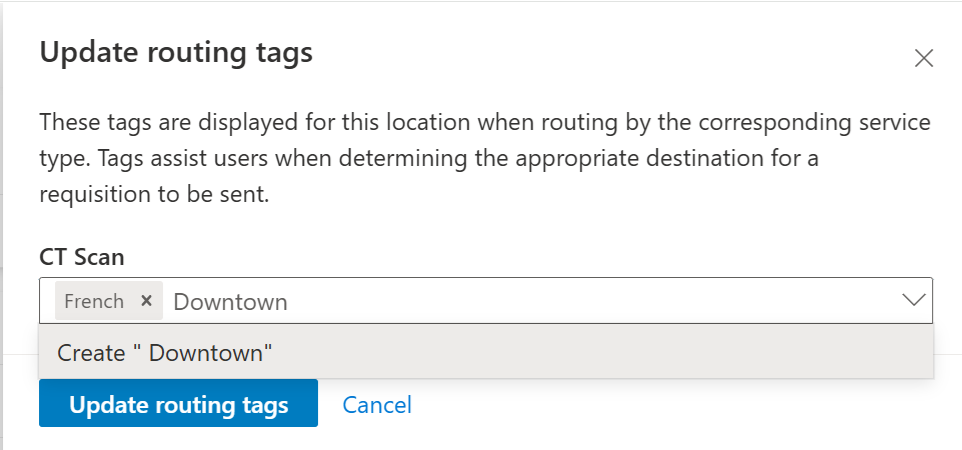
In Update routing tags, select the Service type if there is more than one for the Location
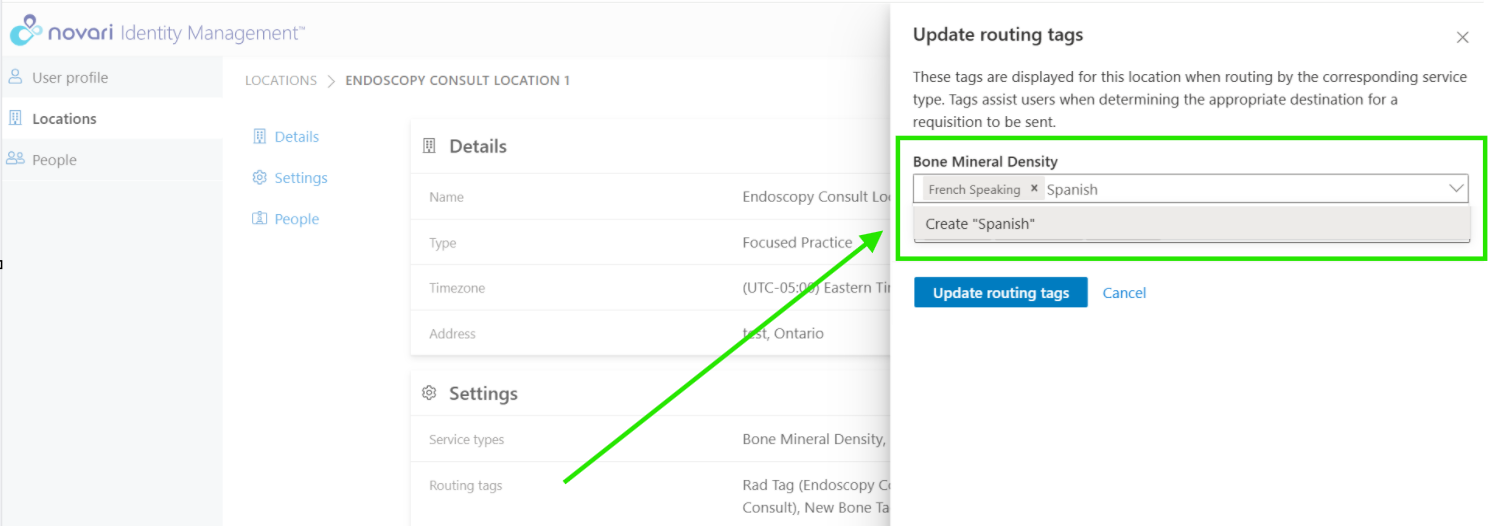
Enter the routing tag name to create a new routing tag
Select Create <tag name> or press <enter>
Select Update routing tags to save and apply your routing tag to the Service type for the Location
Adding existing routing tags to a Location
You can add one or more existing tags to a Location
Sign in to Novari Identity Management
Select Locations from the navigation area
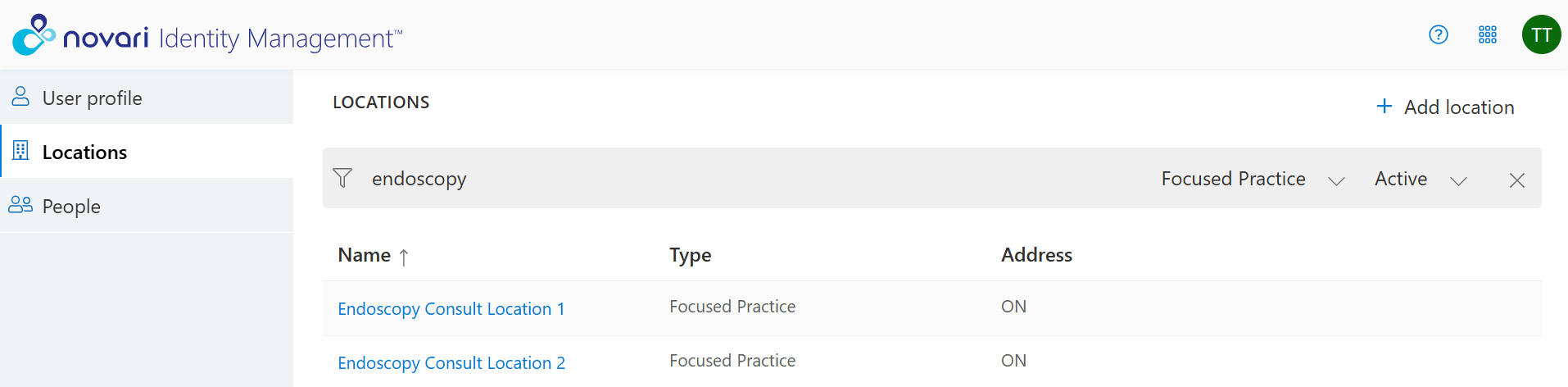
Select the Location to which you want to add a routing tag
Under Settings, select Routing tags
Note: If you don’t see Routing tags, select one or more Service types for the Location.
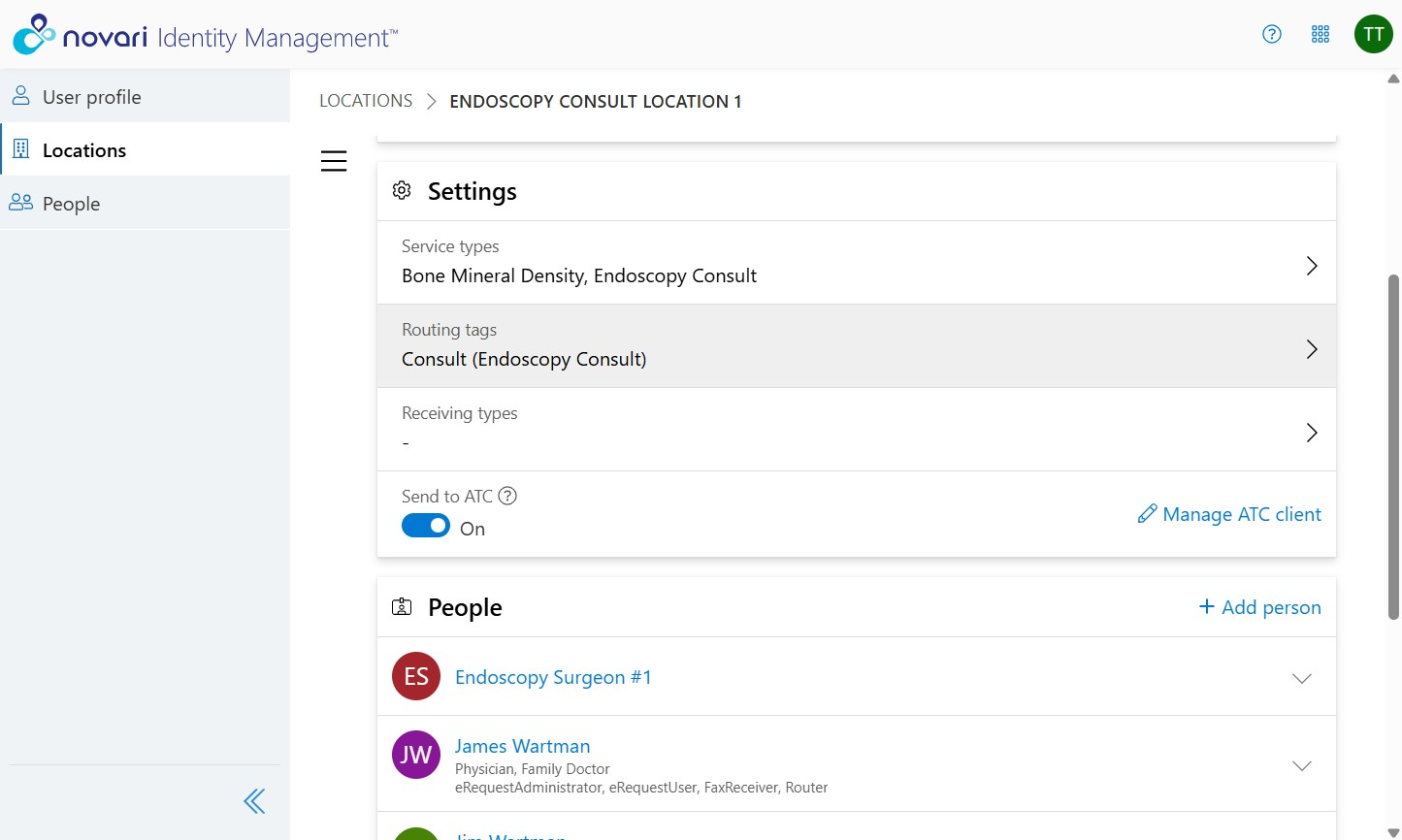
In Update routing tags select an existing tag to apply it to the Location
You can select as many routing tags as are needed
Select Update routing tags to apply the tags to the Location
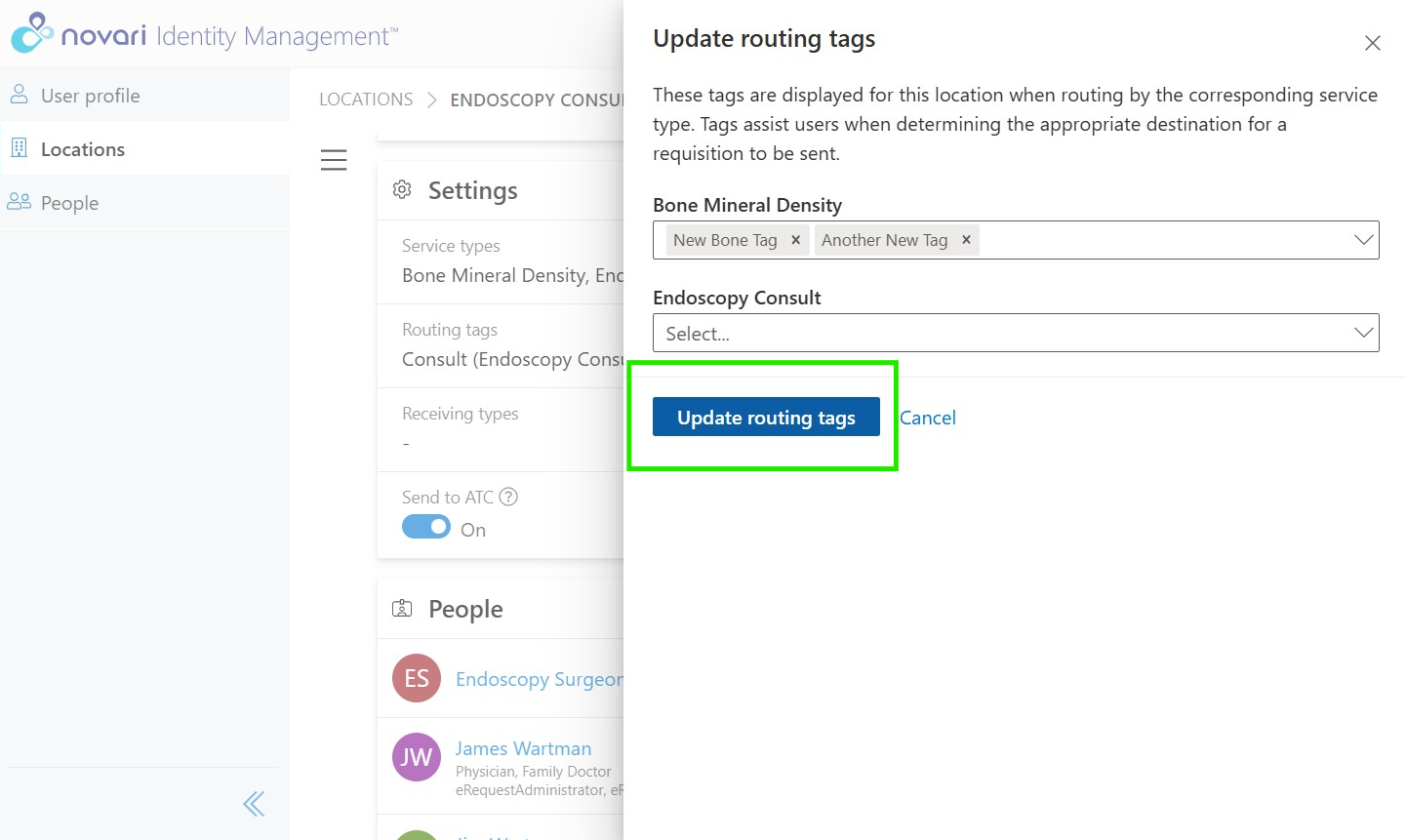
Removing a routing tag from a Location
Select Routing Tags from a Location’s Settings
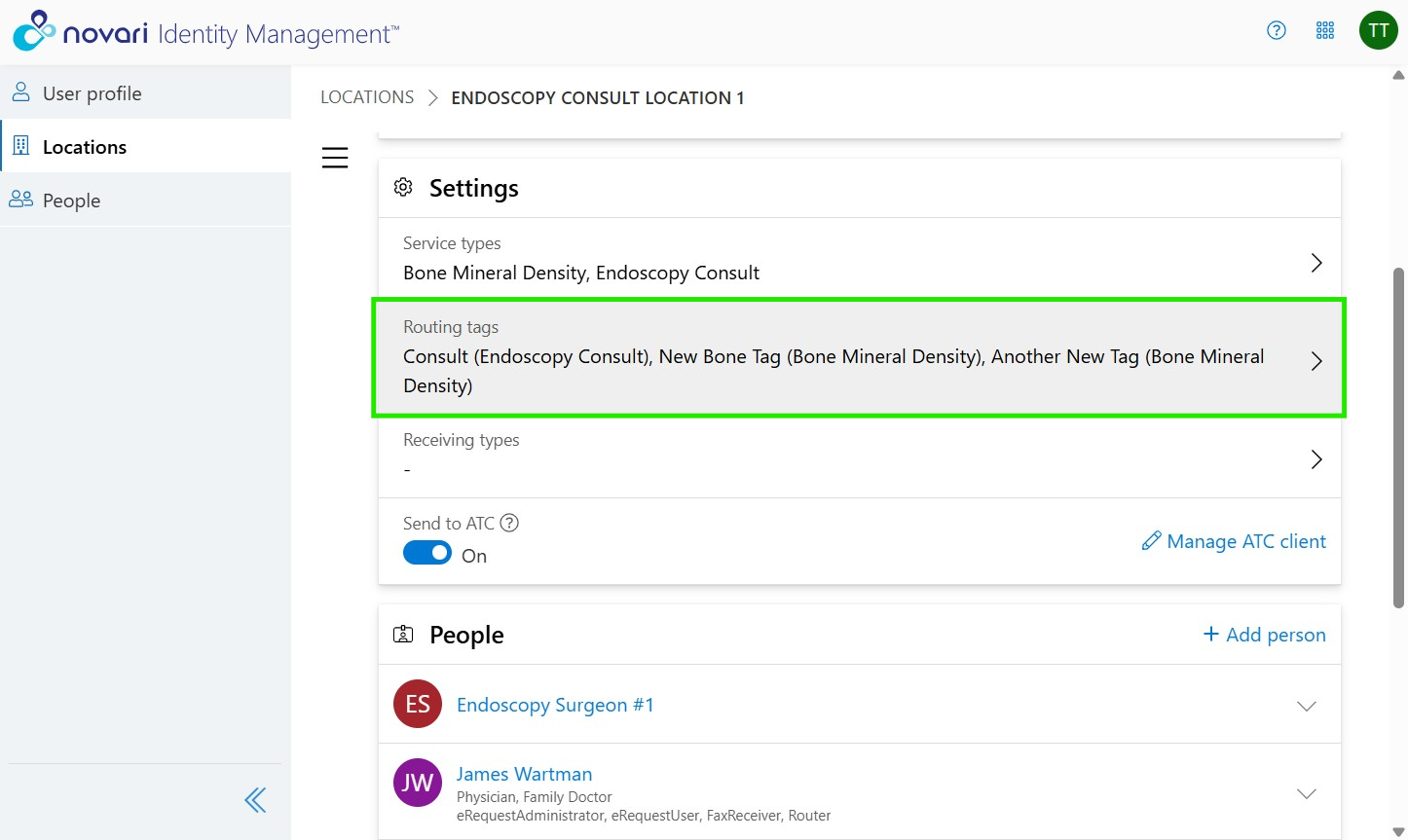
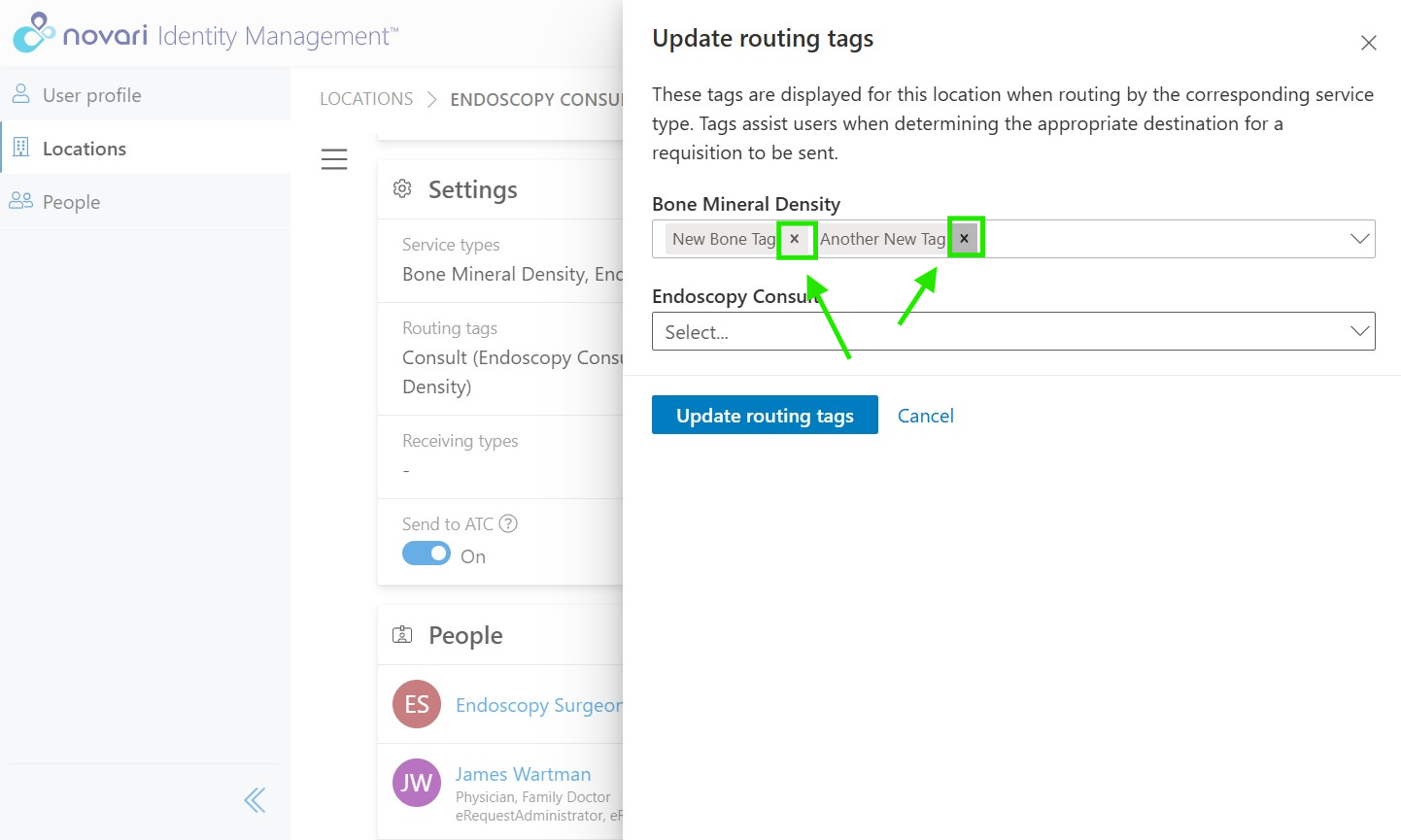
Select the X icon to the right of the routing tag name
Select Update routing tags to save your changes
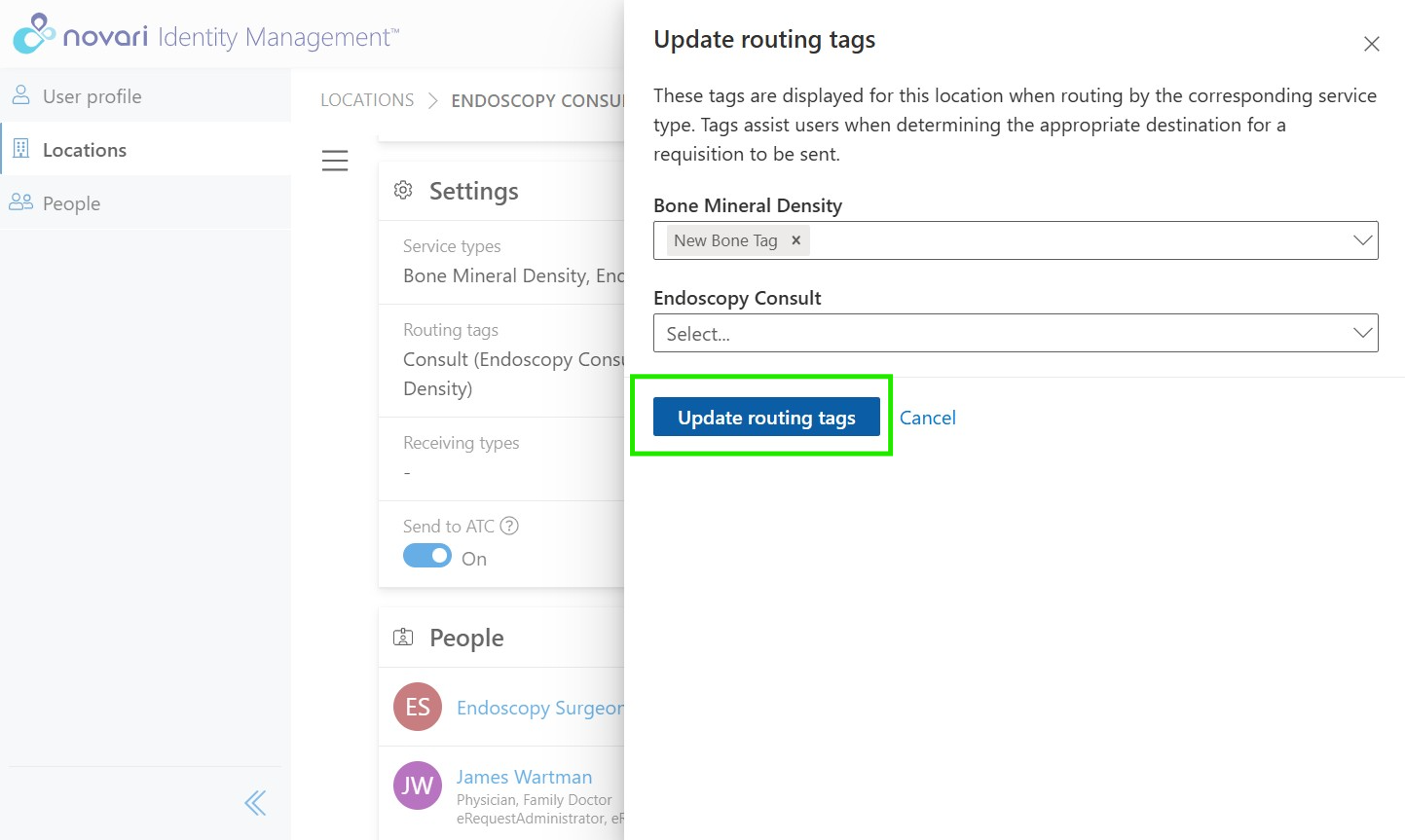
Note: The list of suggested tags displays all previously used tags. Once a tag is removed from all Persons at a Location or Locations it will no longer be suggested.
Managing routing tags on a Person at a Location
You can add routing tags to a person at a location. The person must have one or more Service types at their location before you can add routing tags.
There are two ways to do this:
Select the person from Locations > People, or
From People, search for the person and then open the location attached to the person by selecting the chevron at the right of the location

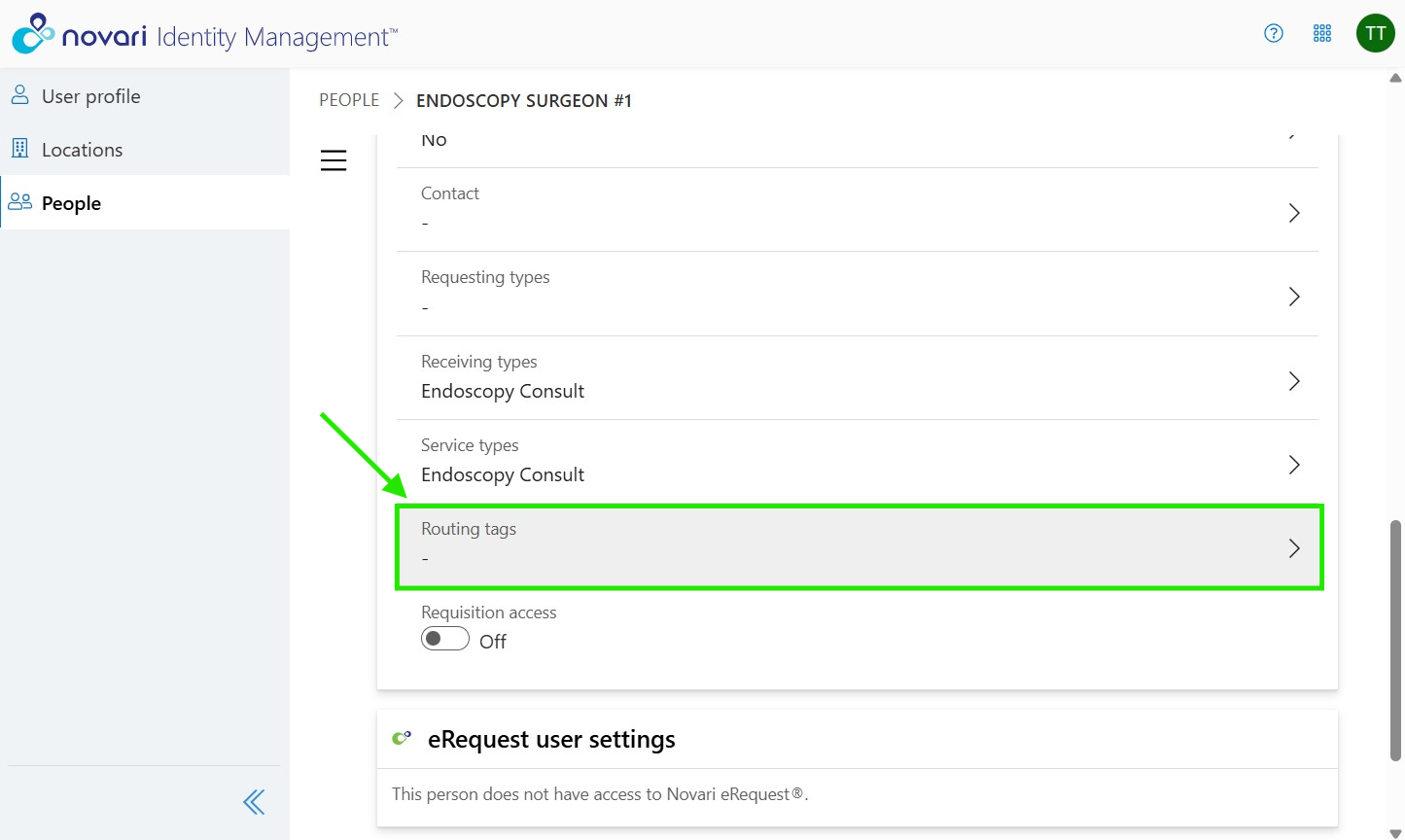
See the screenshots below
.che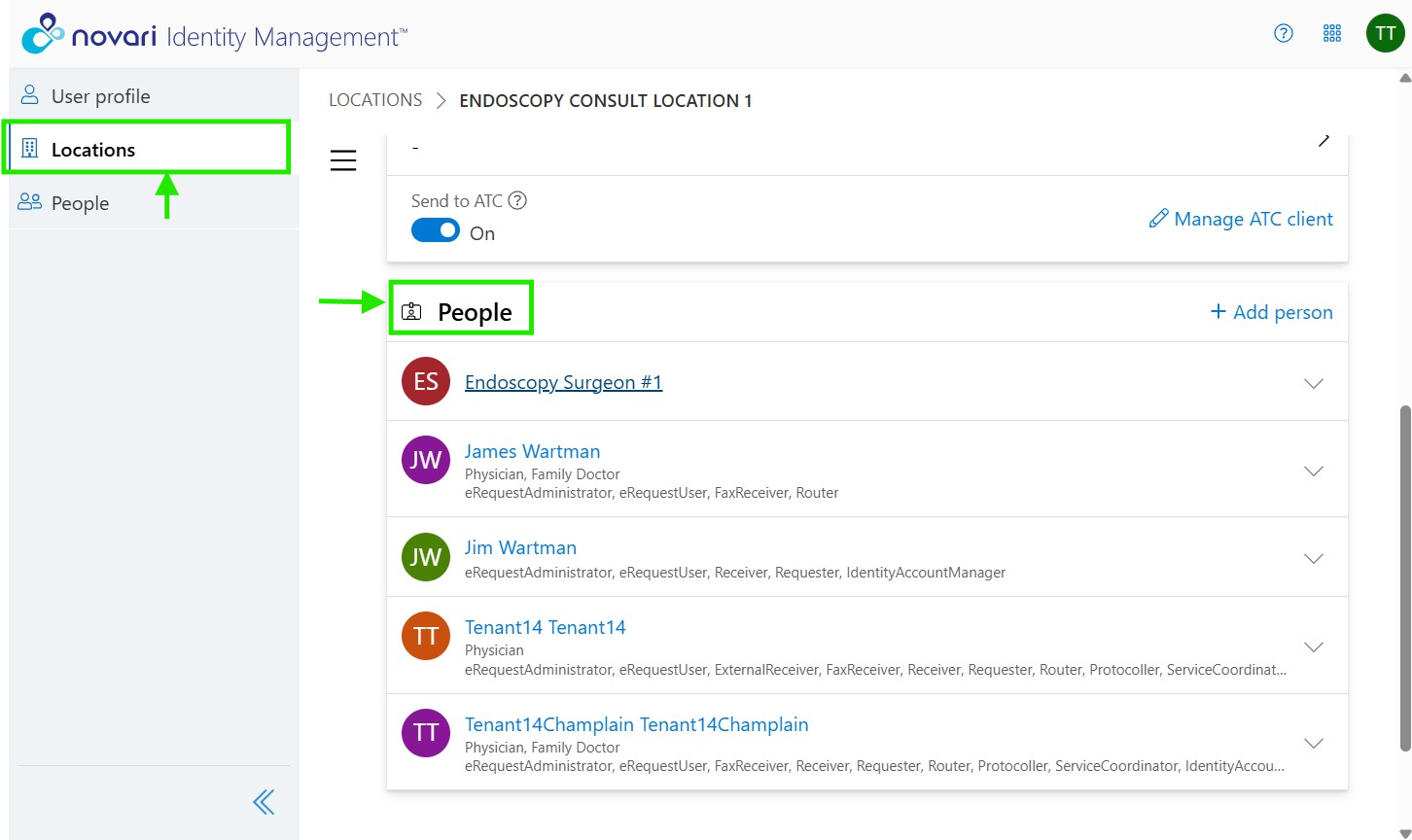
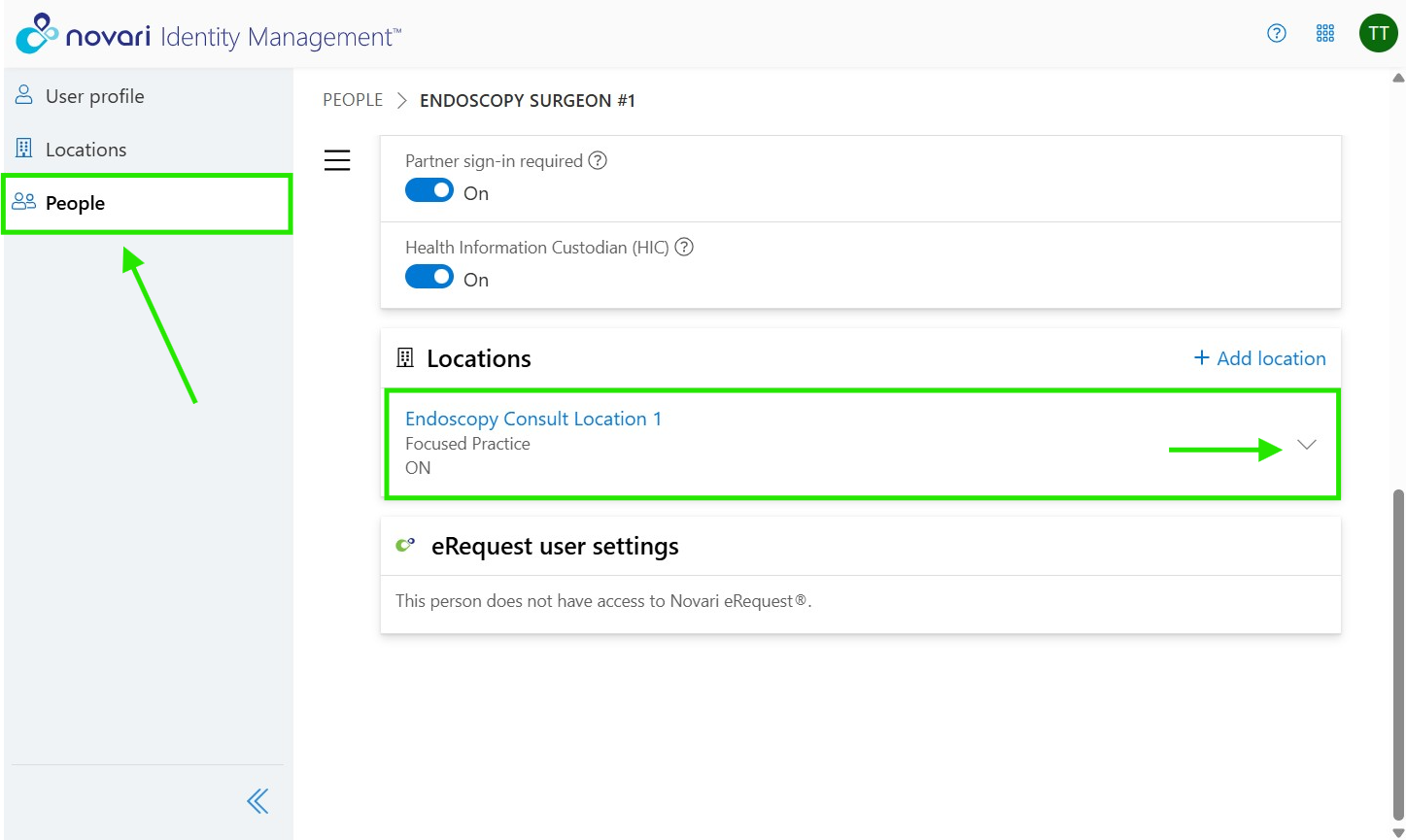
Select Routing tags to manage the routing tags for that person at that location.
Create a new tag (see below) or select an existing tag.
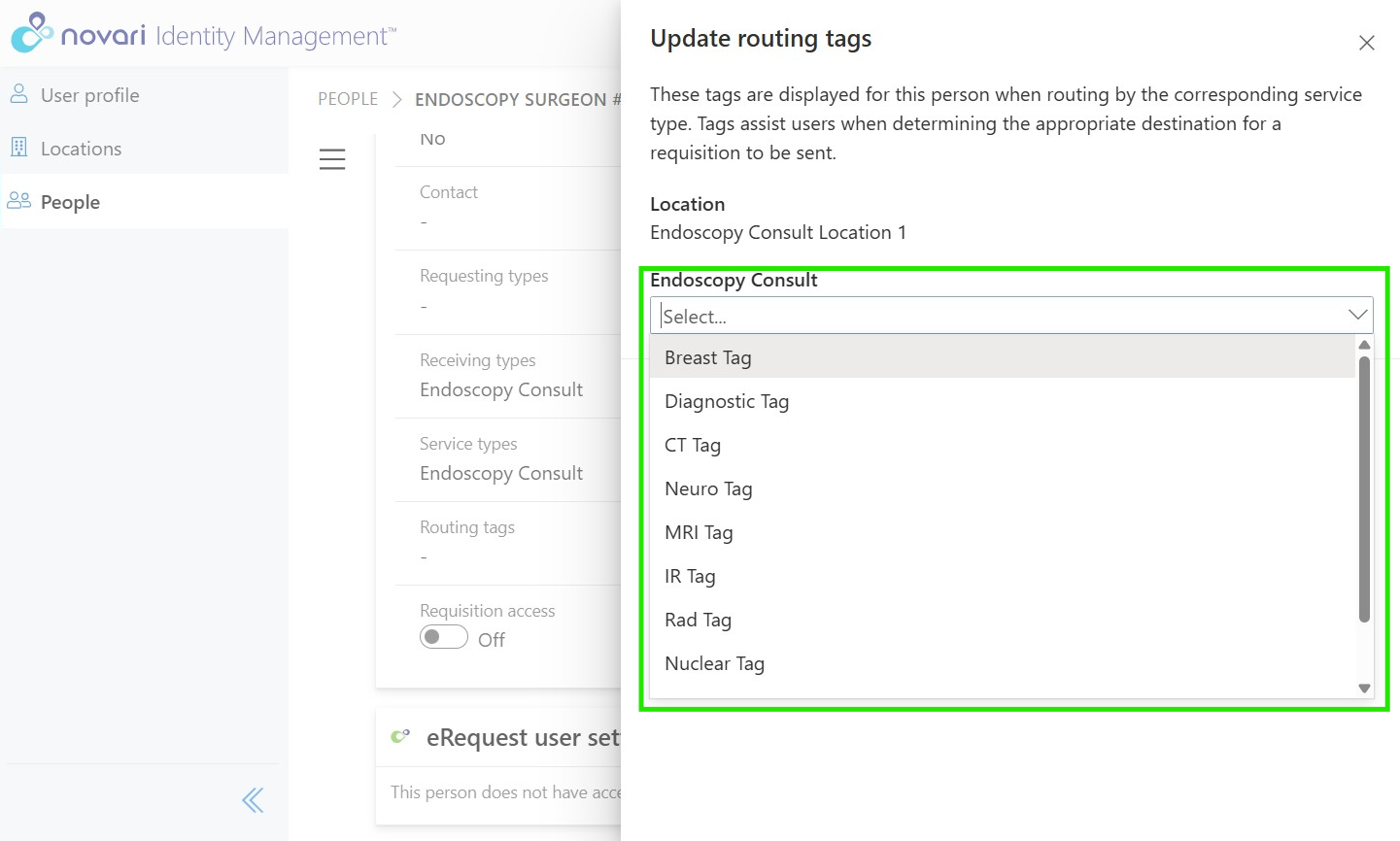
Creating a new routing tag for a person at a location
Select Routing types in the Person’s Location Settings
Enter the routing tag name to create a new routing tag
Select Create <tag name> or press <enter>
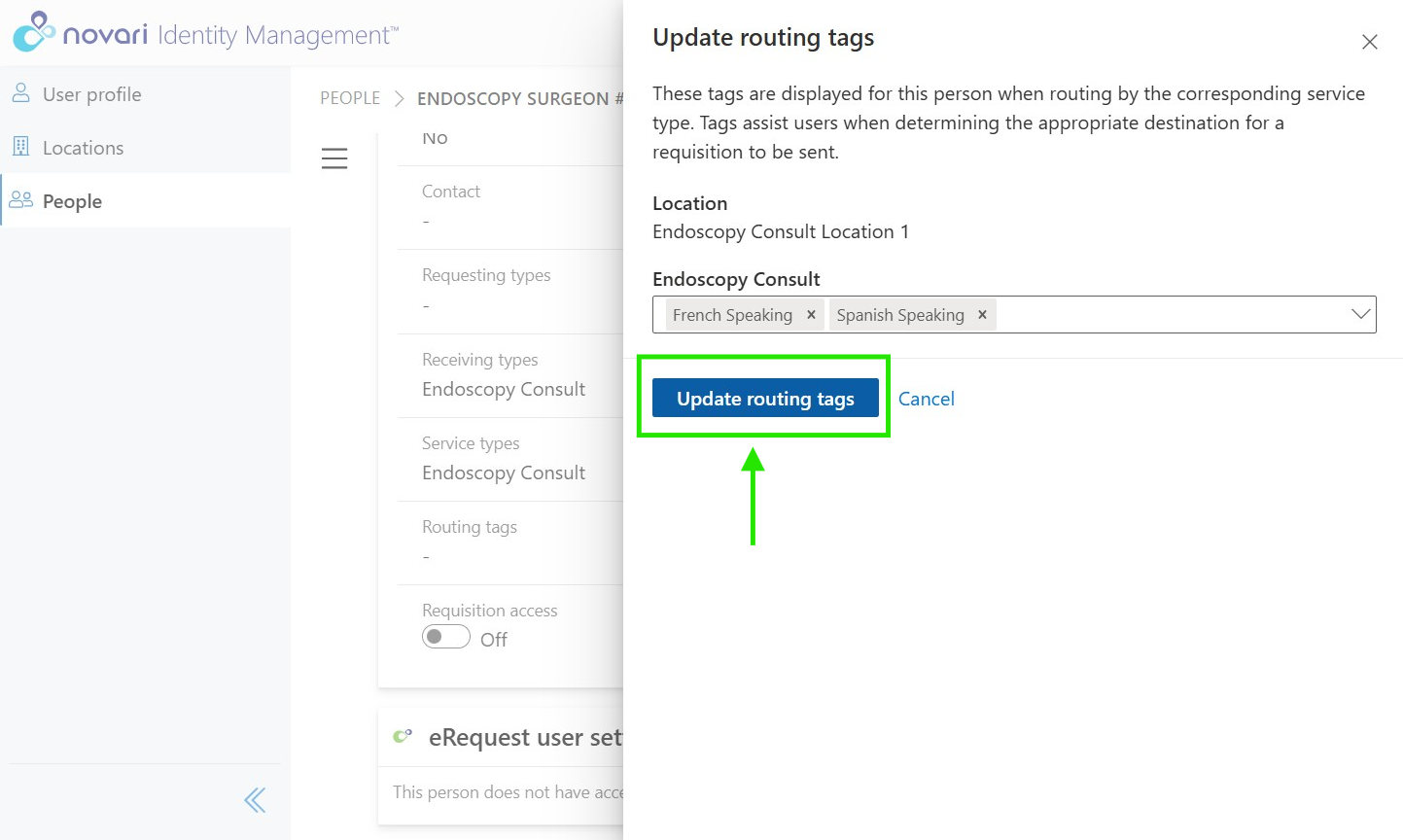
Select Update routing tags to save and apply your routing tag to the Person at the Location
Was this article helpful?
That’s Great!
Thank you for your feedback
Sorry! We couldn't be helpful
Thank you for your feedback
Feedback sent
We appreciate your effort and will try to fix the article