These steps can only be performed by users who have been assigned the Identity Management Role in eRequest and the Admin Role in ATC.If you are experiencing issues with your user permissions, please contact your system administrator for assistance.
Setup for eRequest to ATC (Send to ATC)
To allow referrals to flow from eRequest to a Surgeons unlisted case inbox in ATC for surgical booking there are certain account updates required.
Assigning ATC permissions in Identity Management
1. Login to Novari eRequest, click Administrator from the top menu to launch Novari Identity Management

2. Click People on the left side menu, this will launch the People search.
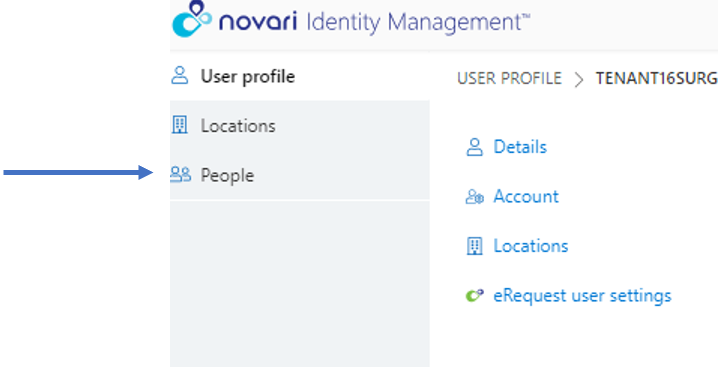
3. Type in the name of the user that you need to add the permission to in the top search bar, then click the persons name from the search results.

4. From the Person Details page scroll down to the Account section and click on Roles.
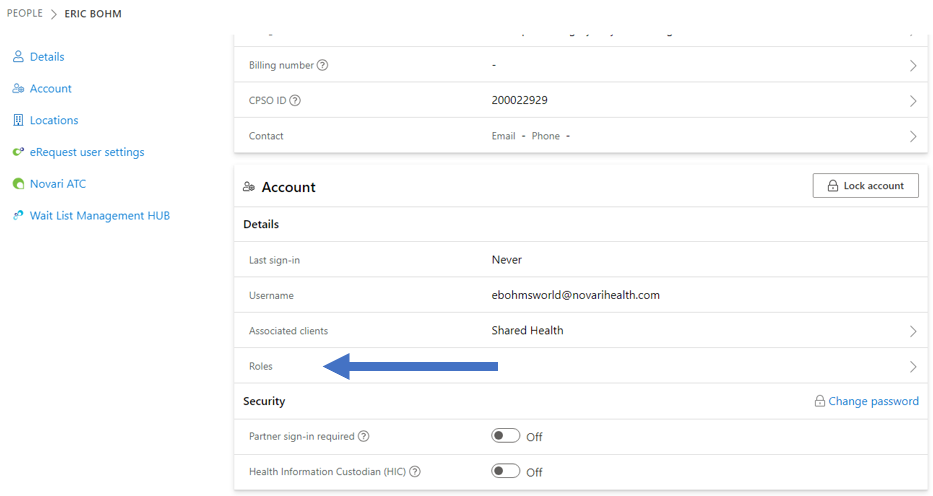
5. The Update Roles section will appear on the right, scroll to select the ATCUser role and click Update roles to save.v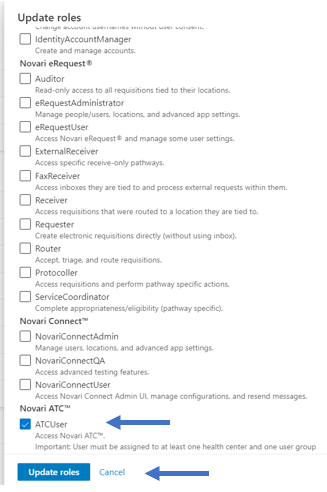
6. Go to the Locations section of the user’s profile and click the location that is tied to the user (this would typically be what is listed as their primary location) and click View Location.
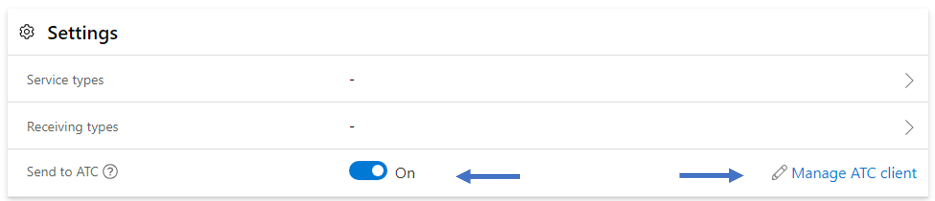
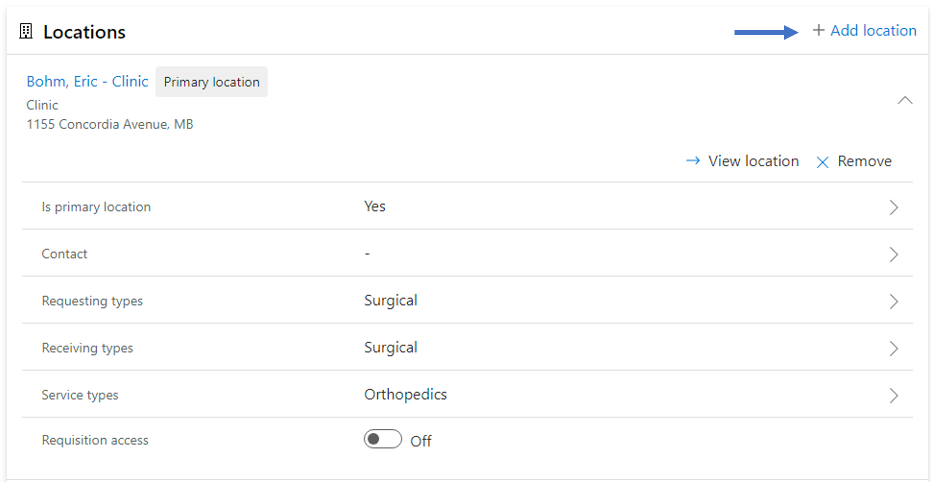
7. The Location details page will open and go to the settings section of the location details page and click the switch to ON and then click Manage ATC Client.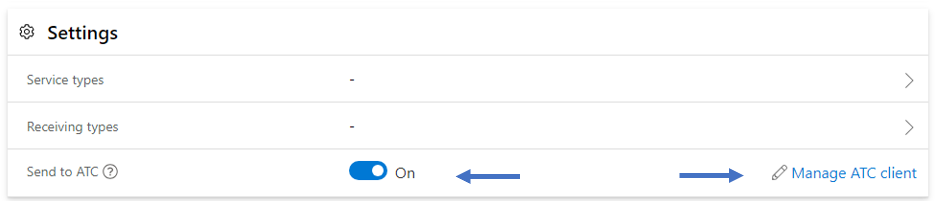
8. From the Manage Novari ATC Integration side menu, select the Novari ATC Client name from the list of options (ensure you select the correct client) and click Update Novari ATC Integration.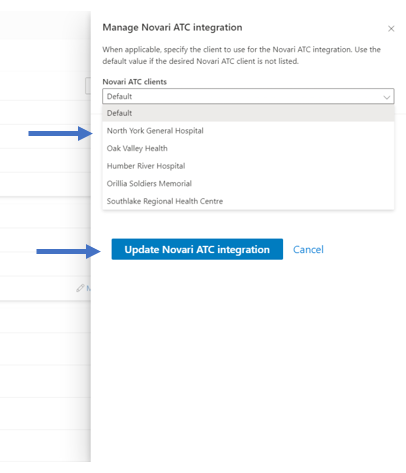
9. Go back to the Person Details page and in the browsers address bar highlight and copy the GUID (Ctrl C) this is what will be required to add to the person in ATC in order for the integrations to work.
Adding the GUID in ATC
Login to ATC, and from the home page select Administrator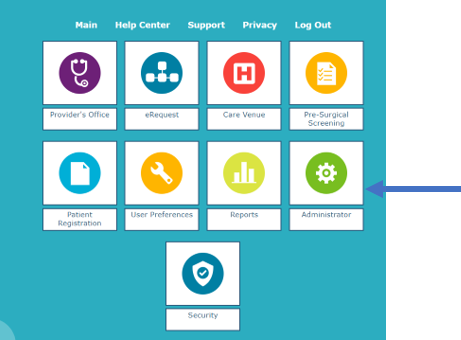
From the Novari ATC Administrator page, click Application Settings (ensure the correct client is selected from the Health Centre Field).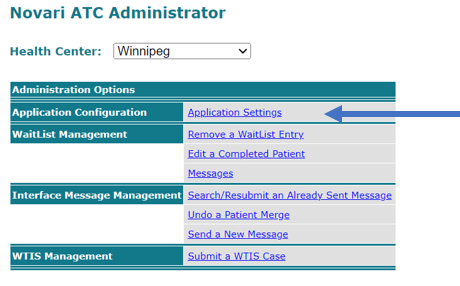
Click Metadata Management Tool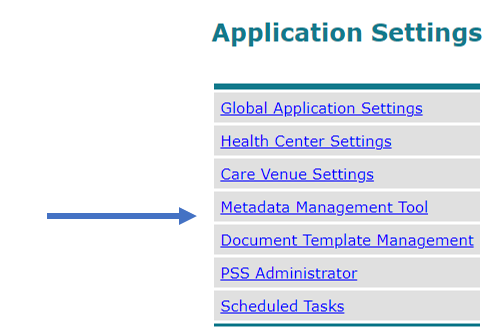
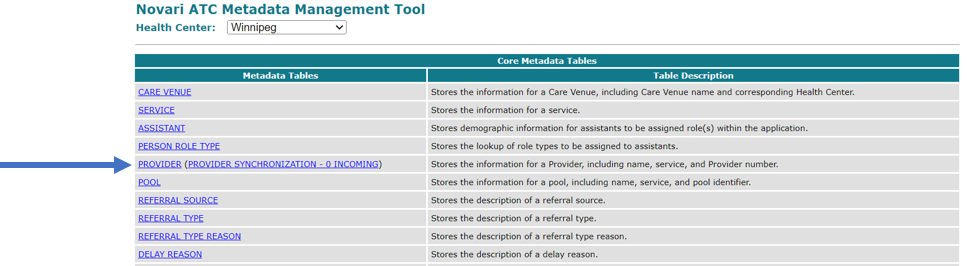
Select the Provider option from the Metadata Tables column
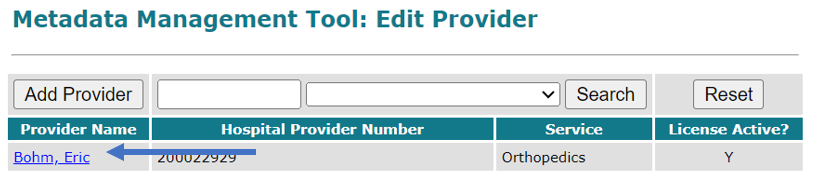
Type the name of the provider in the search field and click Search, then click the name when it appears.
Scroll to the bottom to the Providers Mappings section, and paste (Ctrl V) the GUID from Identity into the eRequest Mappings Code Value field, then click Update to save.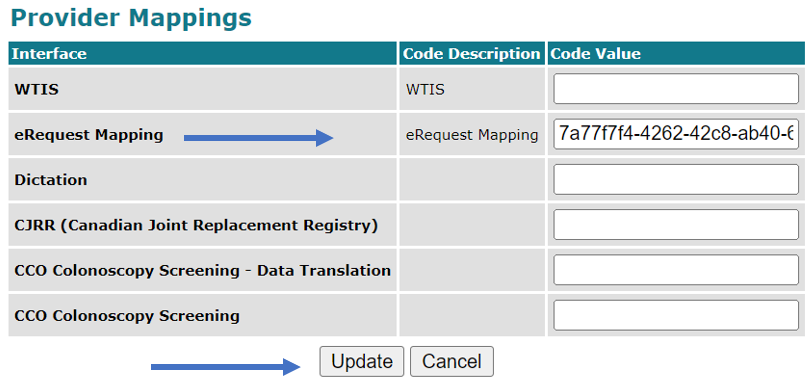
Was this article helpful?
That’s Great!
Thank you for your feedback
Sorry! We couldn't be helpful
Thank you for your feedback
Feedback sent
We appreciate your effort and will try to fix the article