External OR System Schedule in Novari ATC
Novari ATC supports integration with external OR system interfaces. Novari ATC can receive messages regarding how the cases are scheduled in your hospital OR system. This functionality is optional and may not be implemented at your Health Center.
Viewing the External OR System Schedule
Novari ATC displays the External OR System Schedule in the booking areas of the Provider’s Office: Calendar and Scheduler. Novari ATC alerts you to any inconsistencies that might arise between the two systems.
Viewing the OR Schedule in the Calendar
Each day of the calendar will display a count of patients for whom Novari ATC has received booking confirmation. It also displays the number of
consistent inconsistent
 and cancelled bookings
If there are inconsistent bookings, the background of the bar will appear red to indicate that it requires attention.
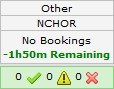 Novari ATC Calendar showing OR System Schedule
Viewing Actual Booking Status from the Scheduler
The Scheduler gives a detailed view of the OR System Schedule. This view displays each patient, their procedure, and surgery time. Each record is labelled as
consistent inconsistent
 or cancelled
For each case, you can move your mouse over the applicable icon to receive a comparison summary. If there are inconsistencies, then hovering over the inconsistent icon will give a list of the inconsistencies.
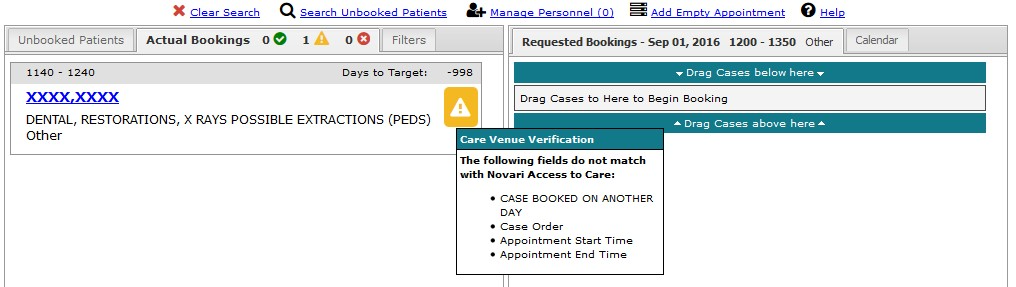 The External OR System Schedule, as seen from the Scheduler.
You can select any of the icons to bring up a detailed comparison between Novari ATC Requested Bookings and the actual OR system. This can be seen on the next page.
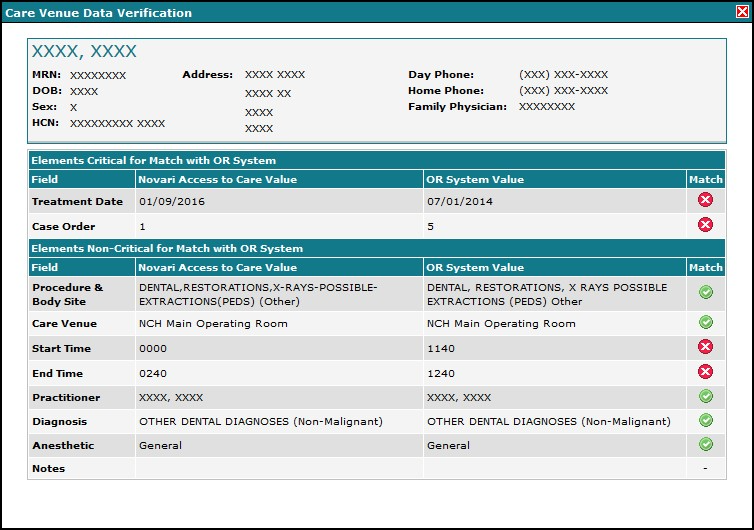 A detailed comparison of Novari ATC booking information and the OR System.
Fields can be configured as either critical or non-critical. Fields which are Critical for Match are fields which should almost always match between systems. Since it is highly unlikely that the start times will be the same, that field is not a good candidate for critical matching.
Cancellations from the External OR System
When a cancellation is received from the external OR system, Novari ATC automatically executes a series of events; the case will be cancelled from the Requested Bookings and an audit will be created and displayed on the Case Cancellations page. When you access the Provider’s Office module, you will see this task appear on your Dashboard.
 OR System Cancellations on the Case Cancellations page
In addition, the system will display the number of cancelled patients on the Calendar and the Scheduler next to the cancelled icon. Once you have acknowledged all the cancellations, the cancelled icon will return to 0.
Was this article helpful?
That’s Great!
Thank you for your feedback
Sorry! We couldn't be helpful
Thank you for your feedback
Feedback sent
We appreciate your effort and will try to fix the article